Free Creation Canvas
1. Open the Canvas
Path: Home page → New blank canvas.

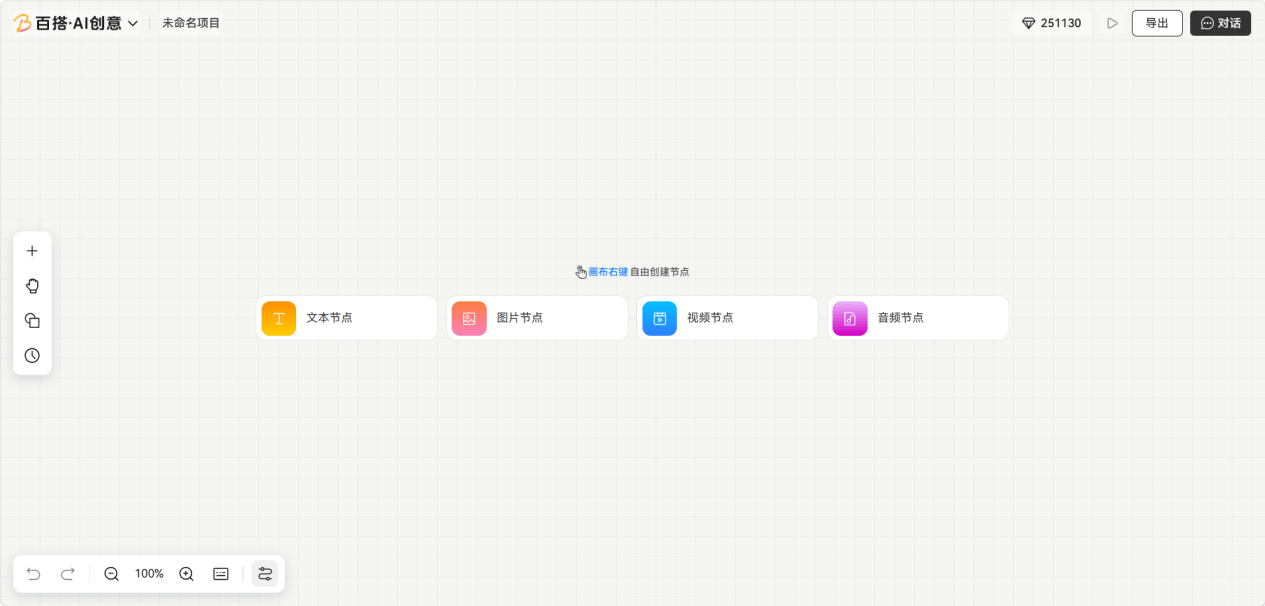
2. Create Images
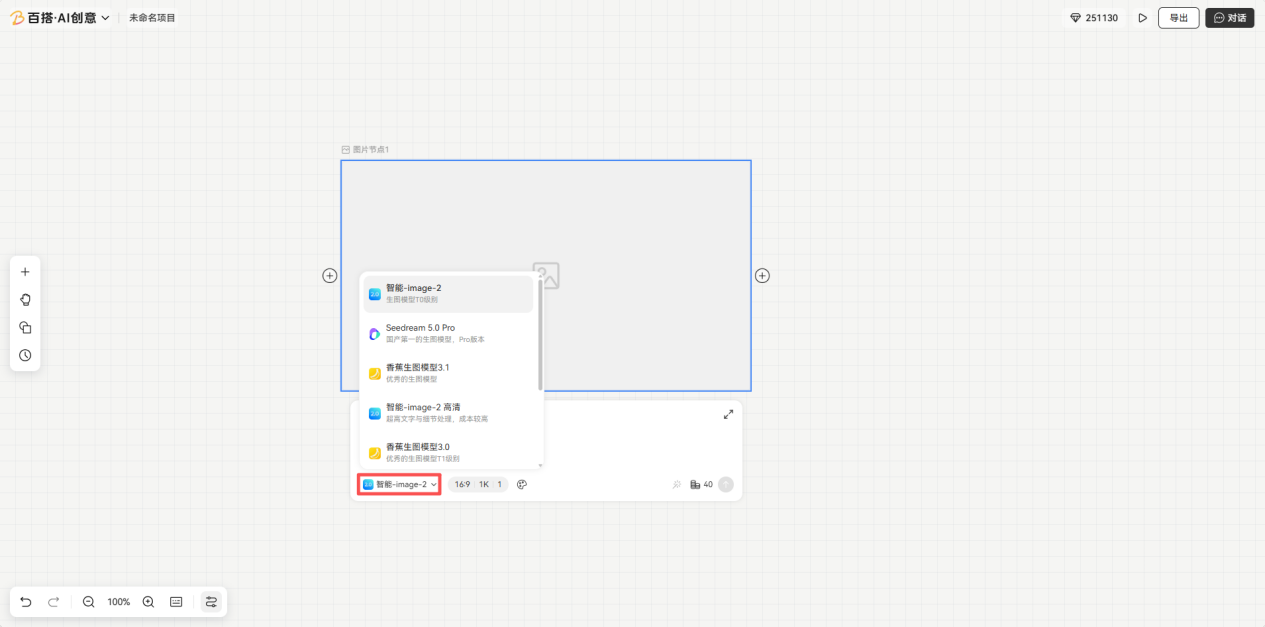
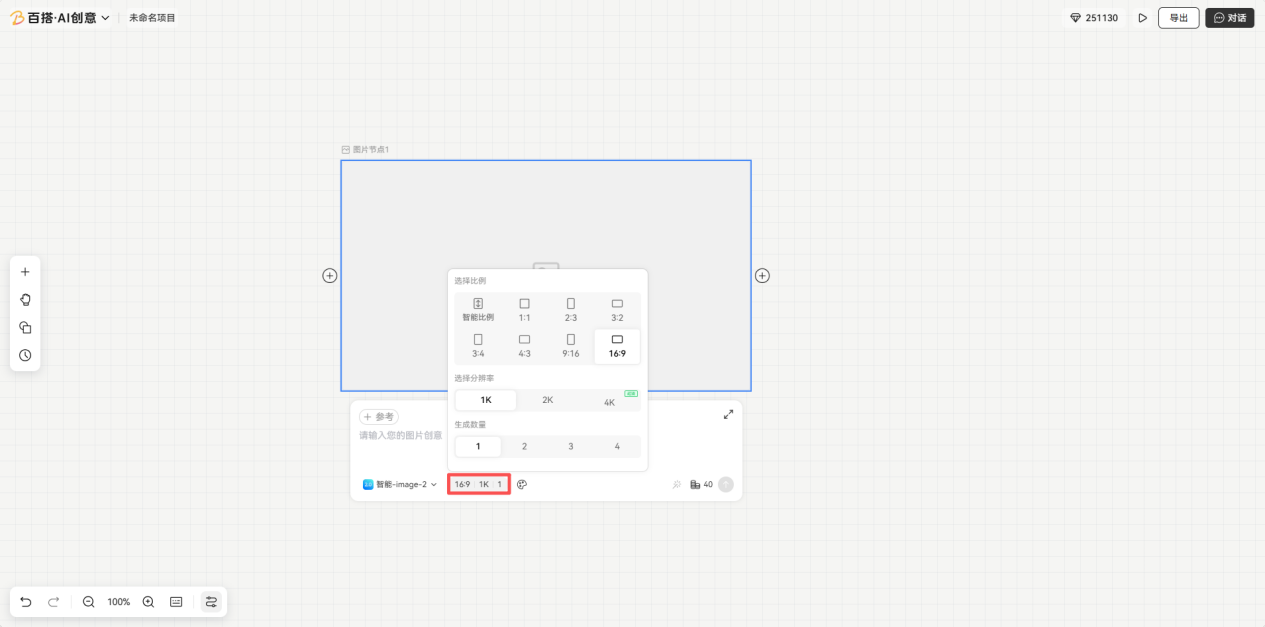
Path: Home page → New blank canvas → create from an image node, choose Image from a node's context menu, or add a node from the plus button → enter a prompt and click Generate → switch the model → choose the aspect ratio, resolution, and quantity.
2.1 Create from an image node
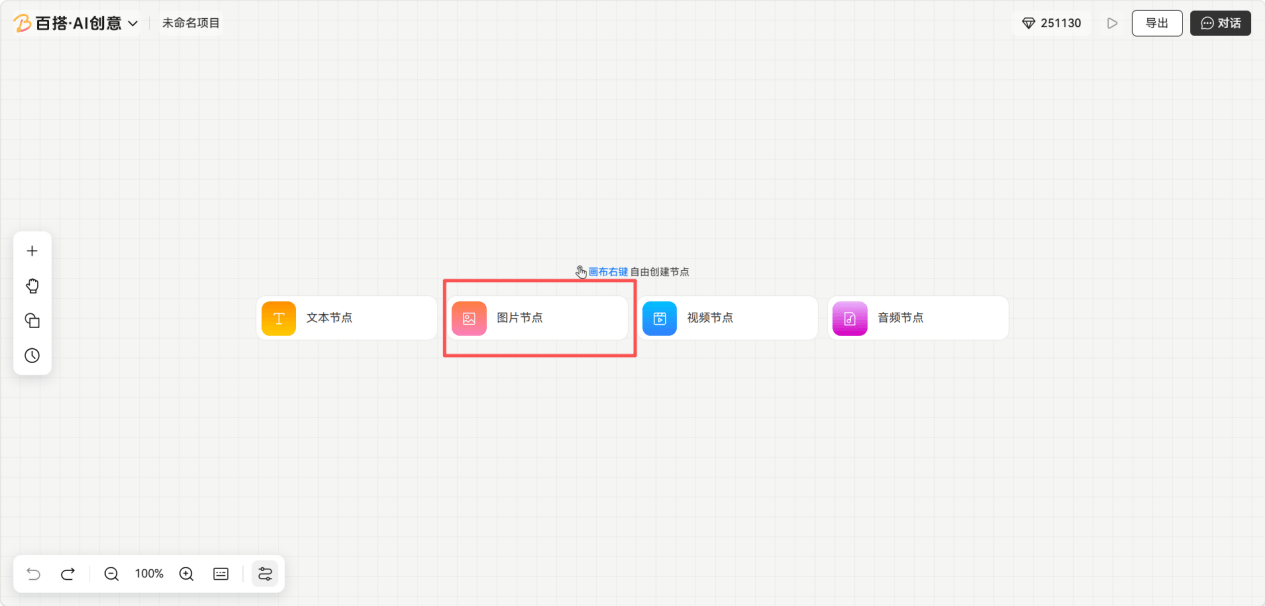
2.2 Choose Image from a node's context menu
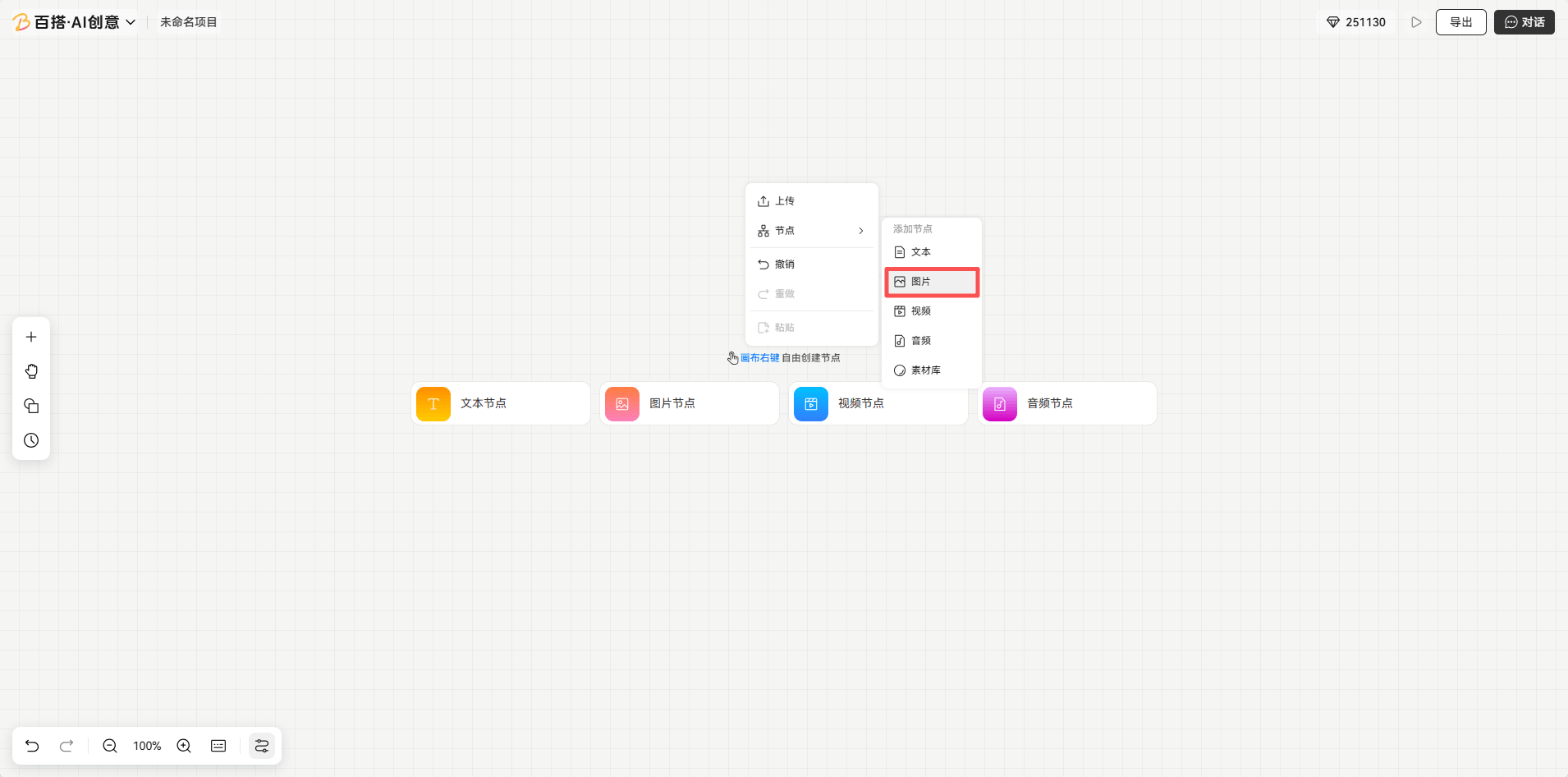
2.3 Add a node from the plus button
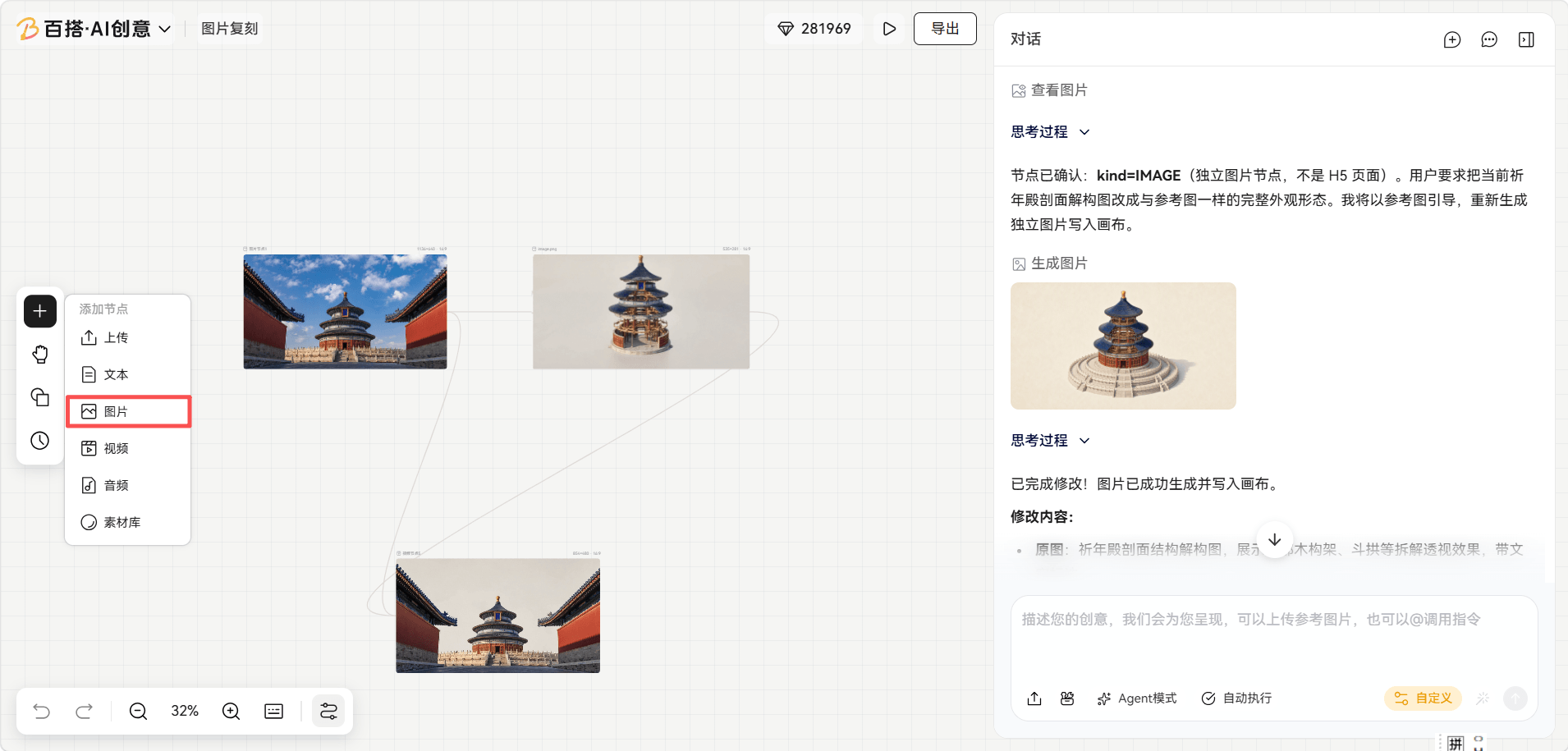
2.4 Choose an image model
2.5 Choose the image ratio, resolution, and quantity
3. Create Videos
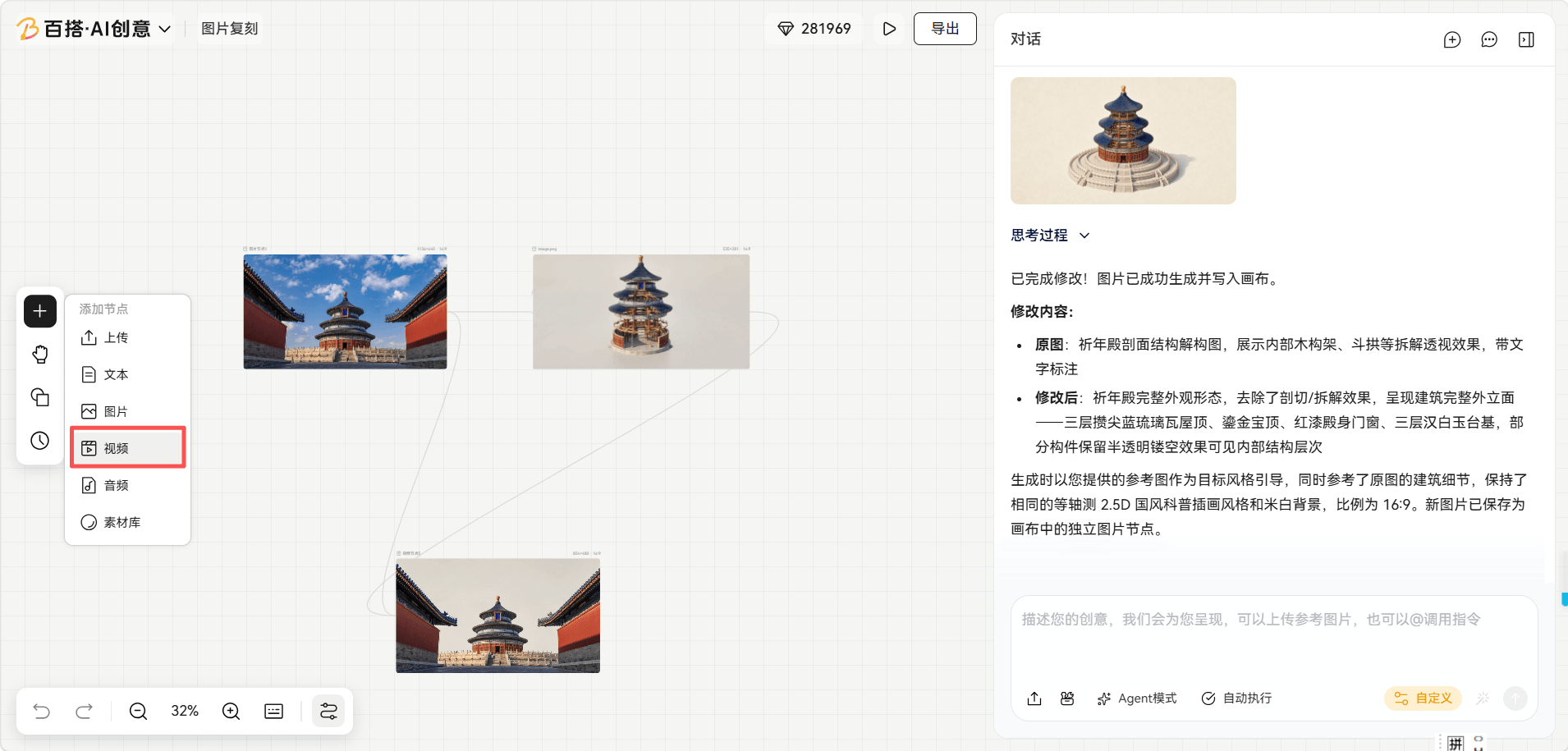
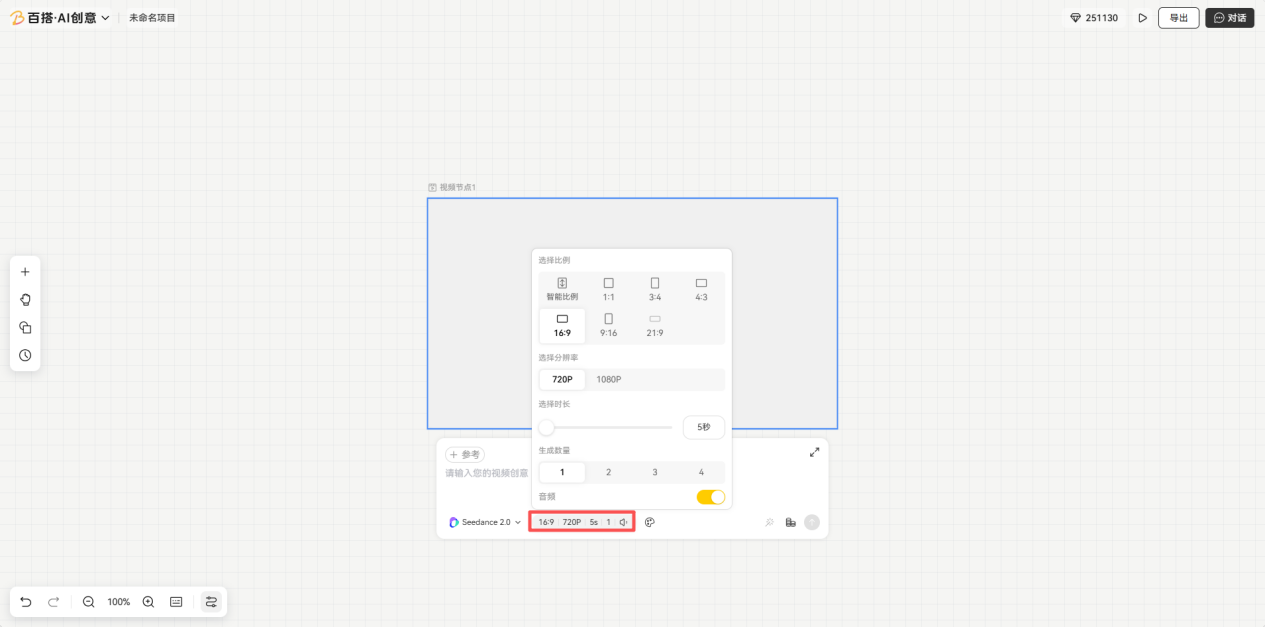
Path: Home page → New blank canvas → create from a video node, choose Video from a node's context menu, or add a node from the plus button → enter a prompt and click Generate → switch the model → choose the aspect ratio, resolution, duration, and quantity.
3.1 Create from a video node
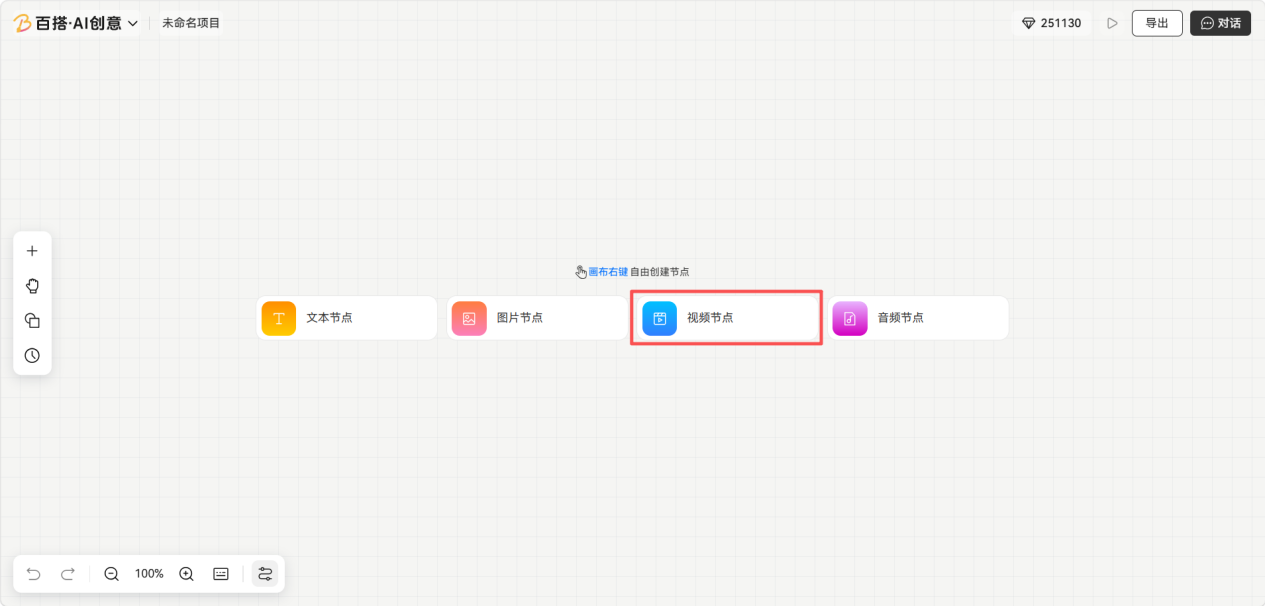
3.2 Choose Video from a node's context menu
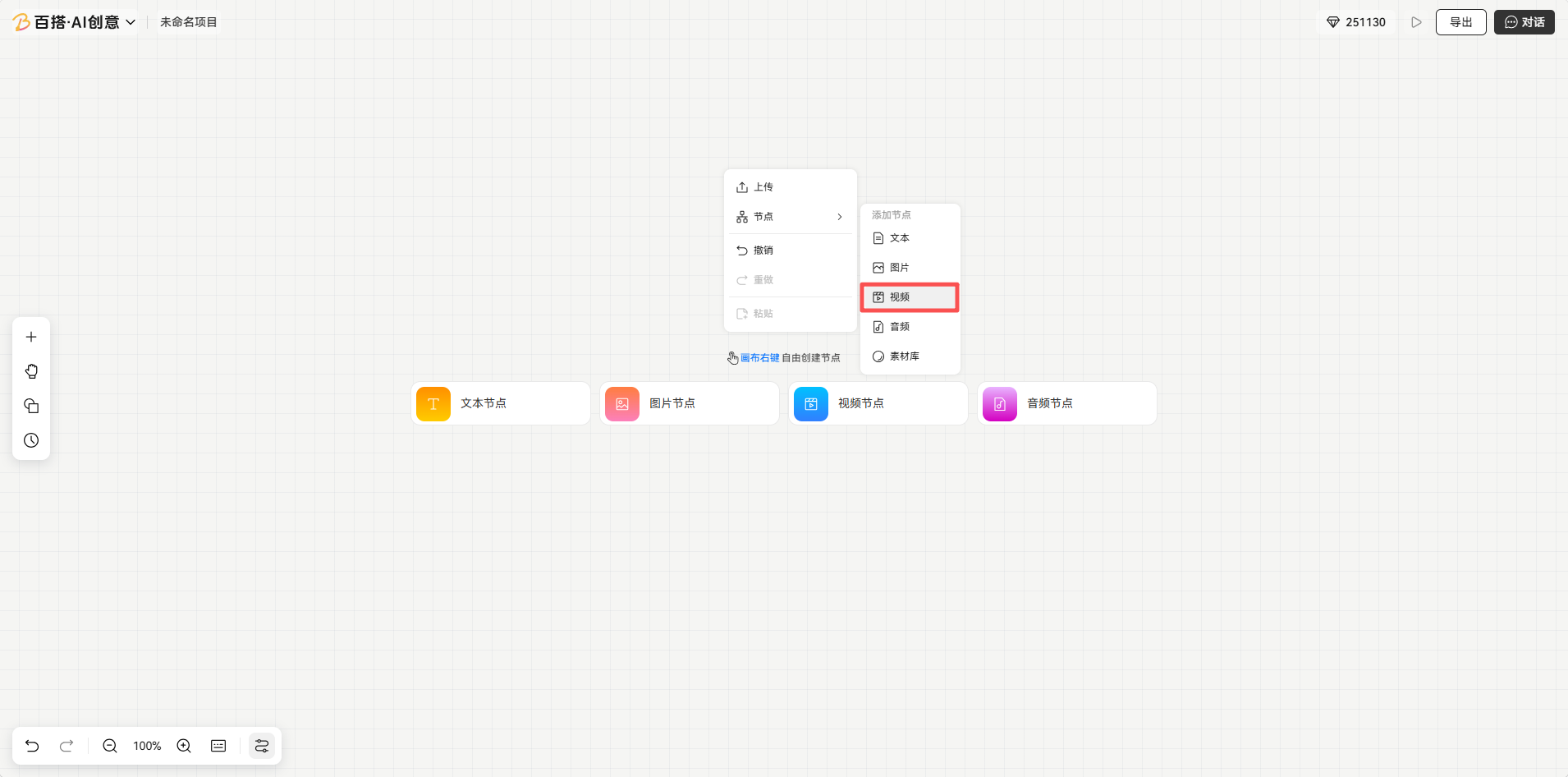
3.3 Add a node from the plus button
3.4 Choose a video model
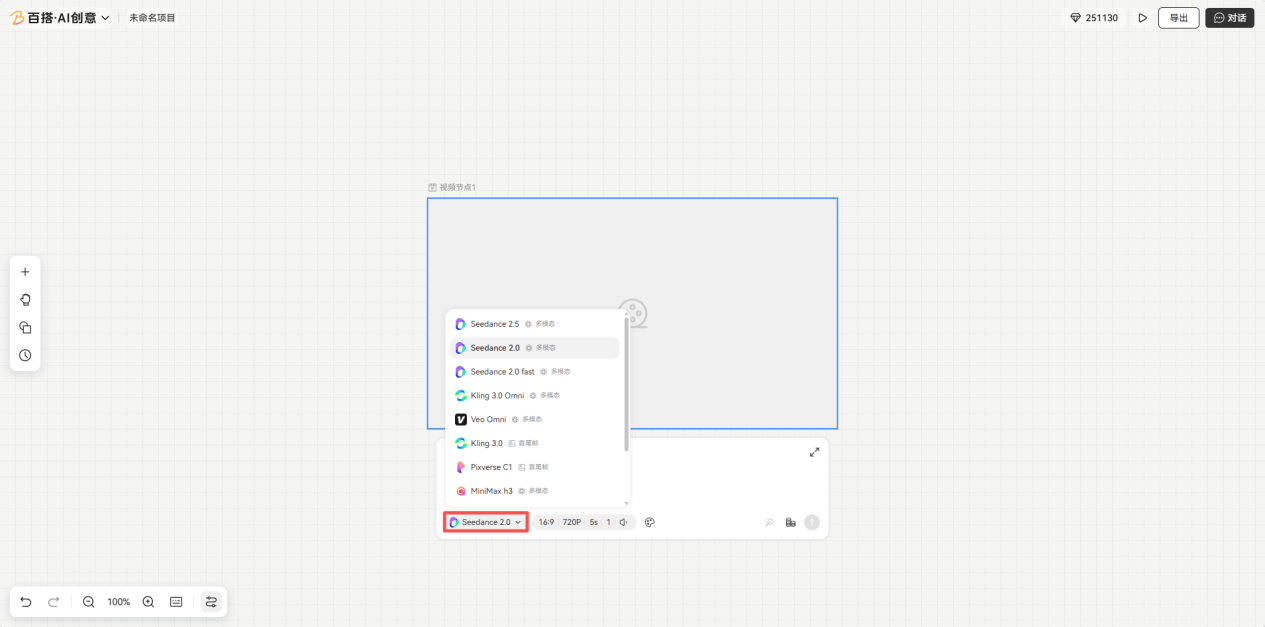
3.5 Choose the video ratio, resolution, duration, and quantity
4. Create Audio
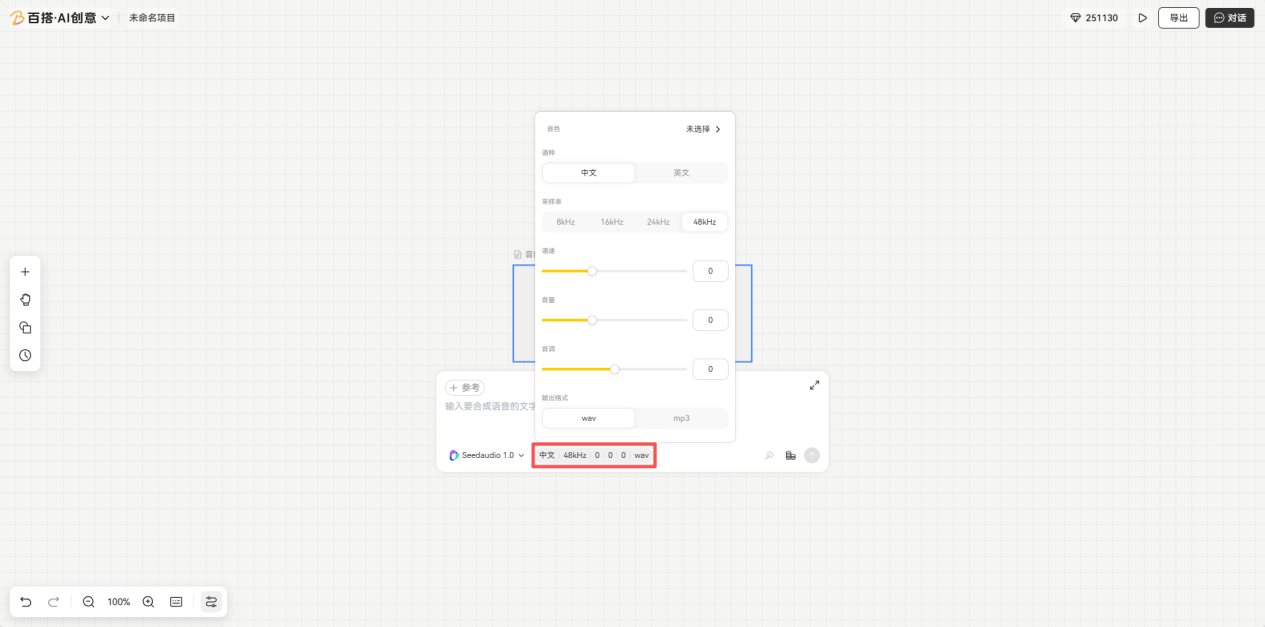
Path: Home page → New blank canvas → create audio, choose Audio from a node's context menu, or add a node from the plus button → enter a prompt and click Generate → choose the language, sample rate, speed, volume, pitch, and output format.
4.1 Create audio
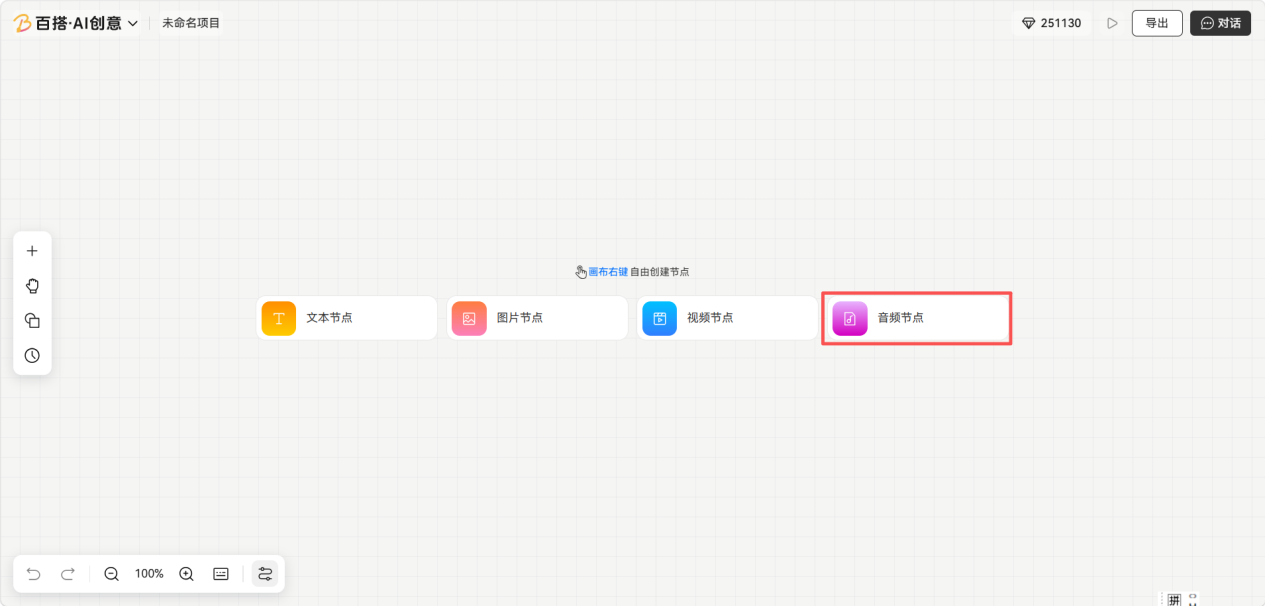
4.2 Choose Audio from a node's context menu
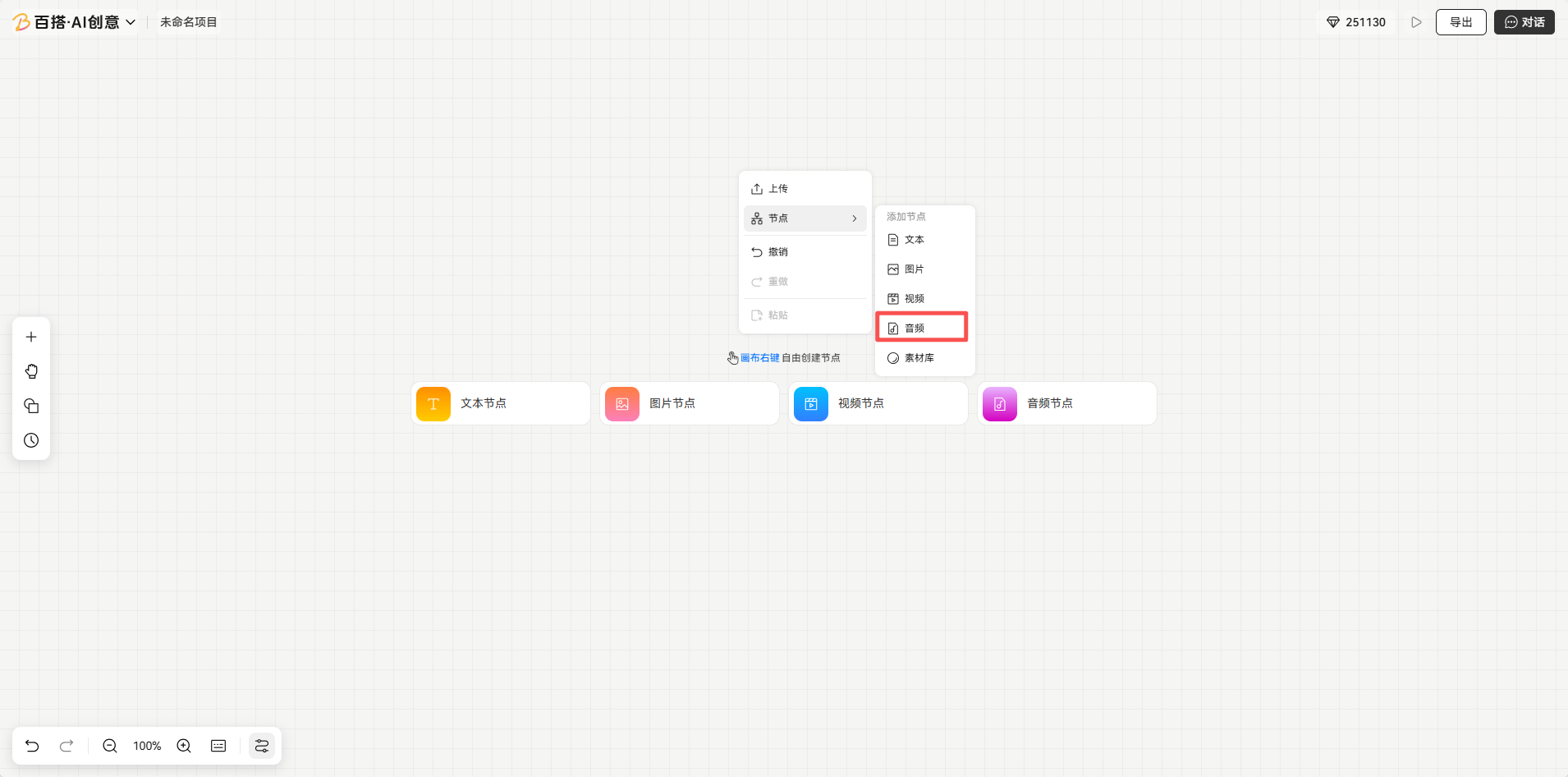
4.3 Add a node from the plus button
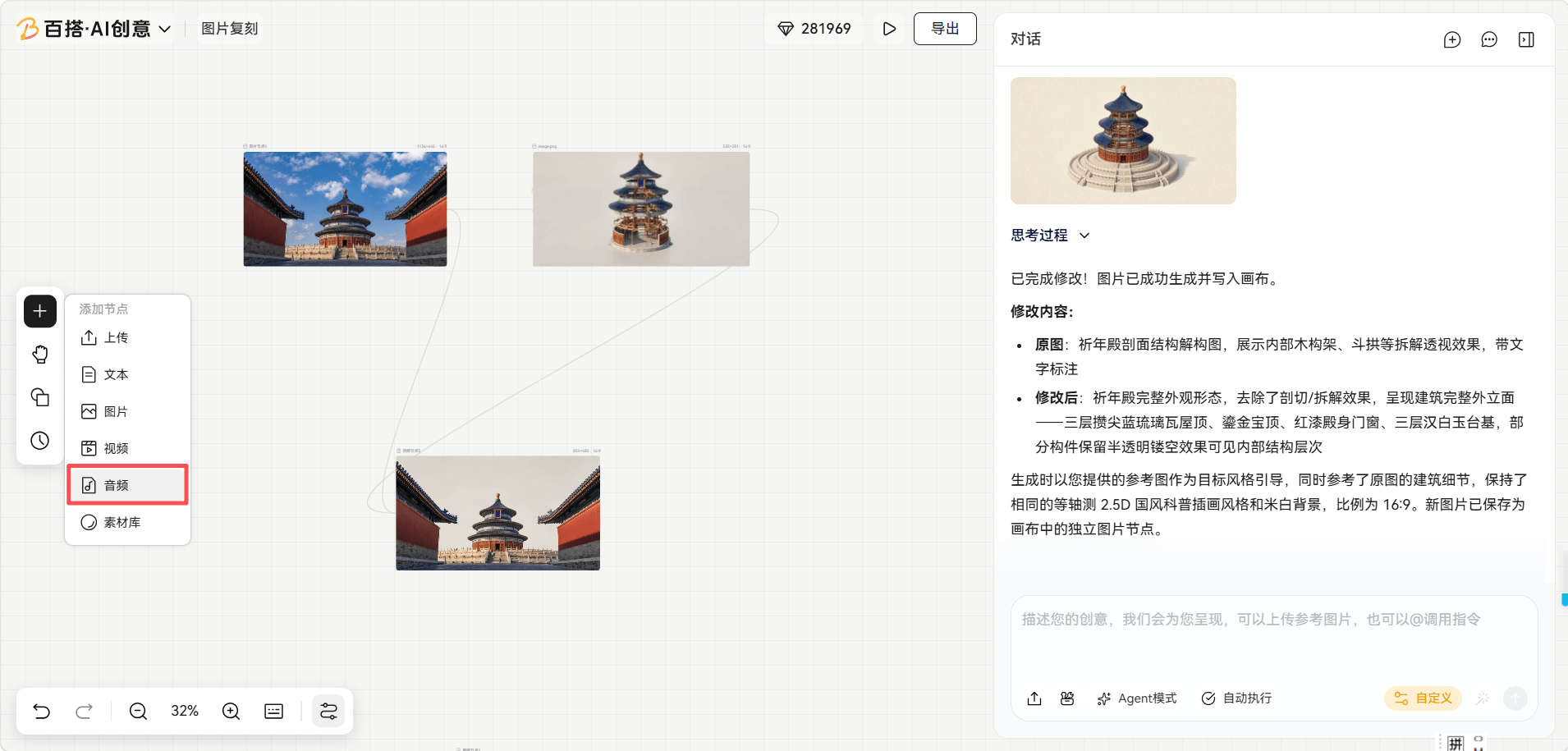
4.4 Choose audio options
5. Create Text
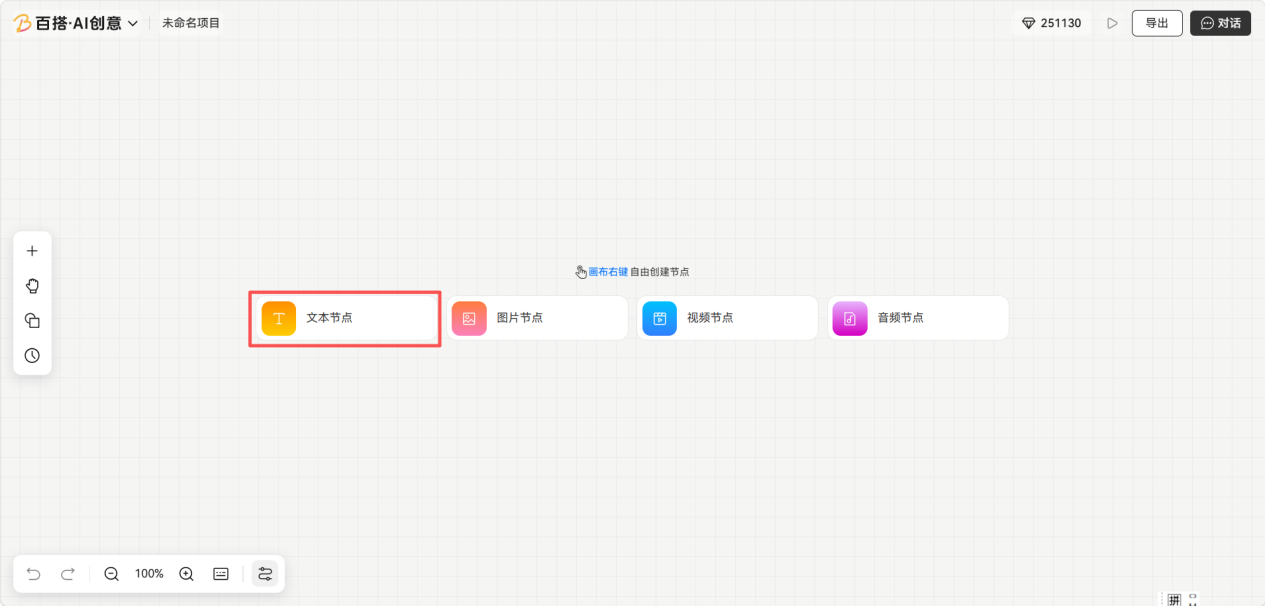
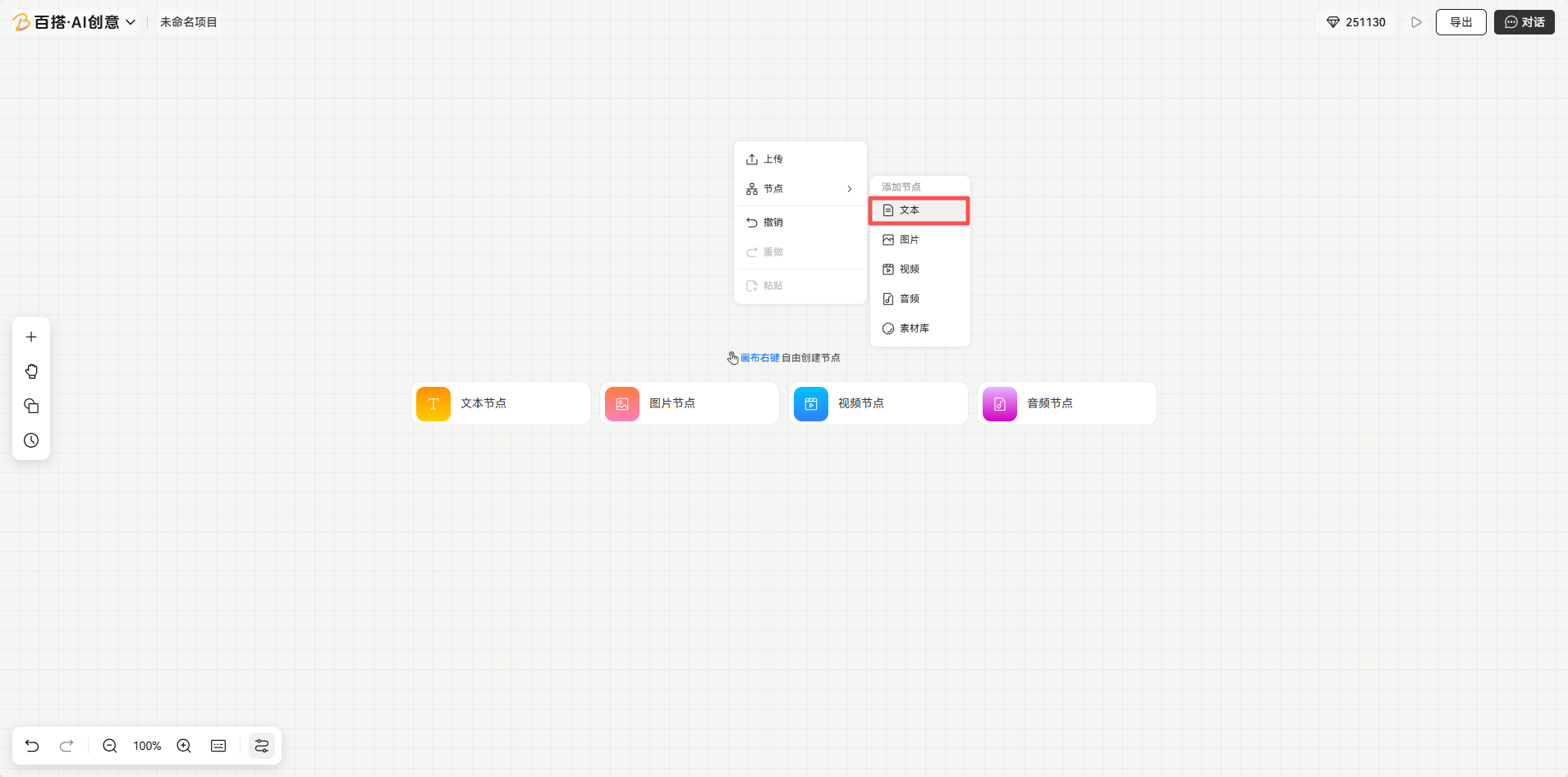
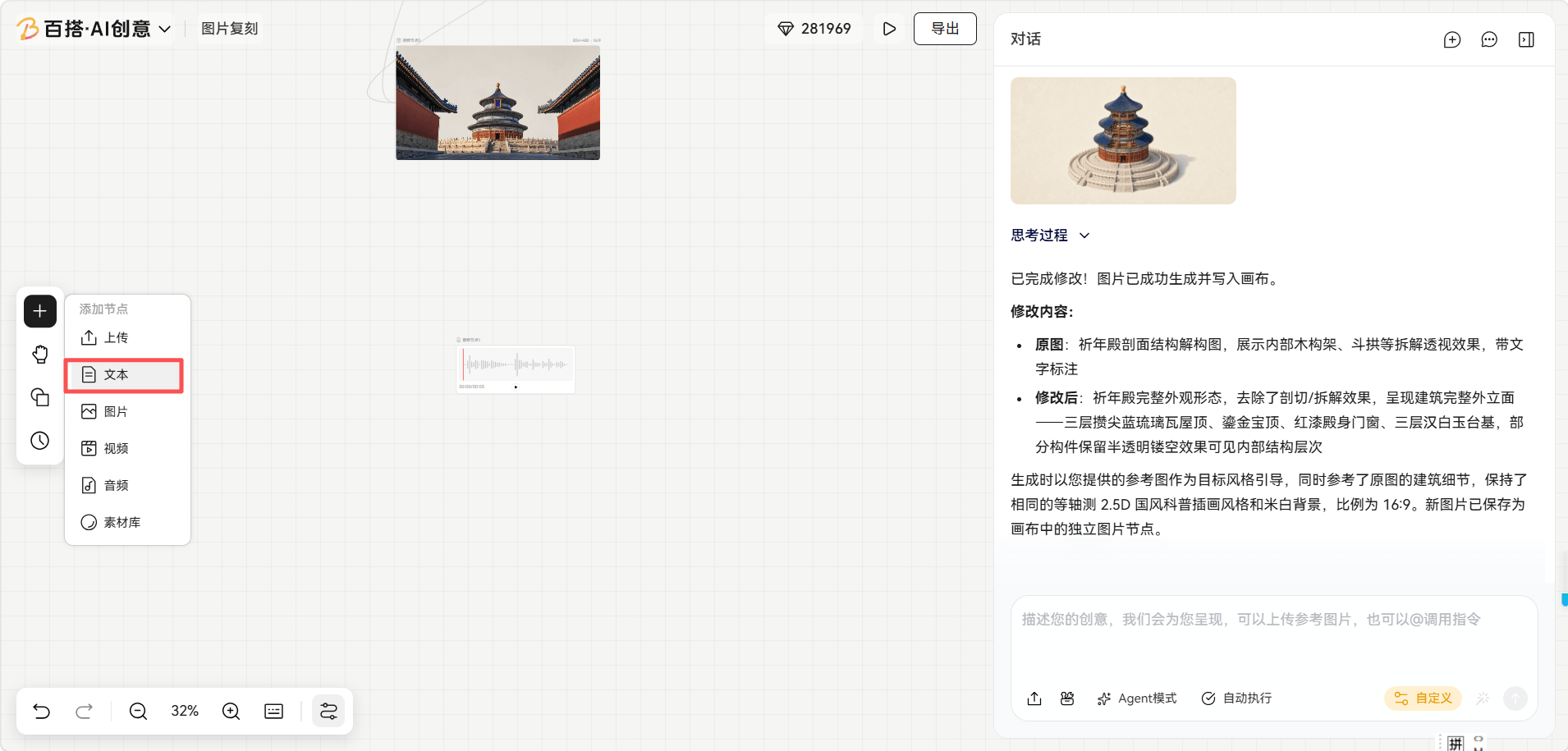
Path: Home page → New blank canvas → create text, choose Text from a node's context menu, or add a node from the plus button → enter text → change the font, size, and style.
5.1 Create text
5.2 Choose Text from a node's context menu
5.3 Add a node from the plus button
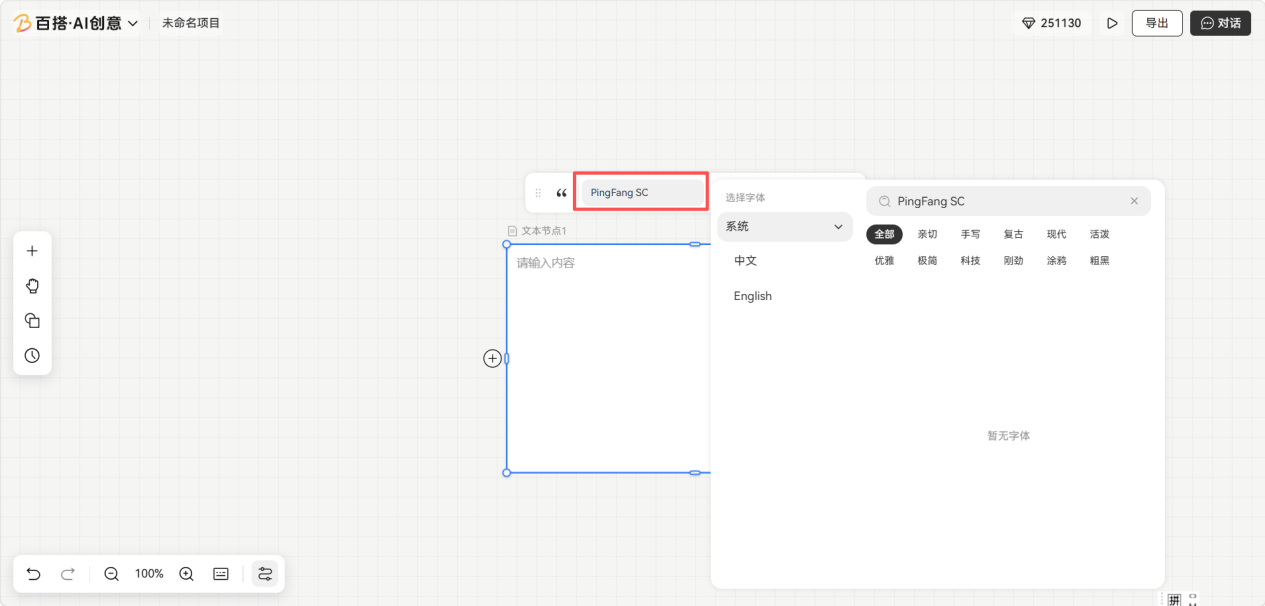
5.4 Choose a font
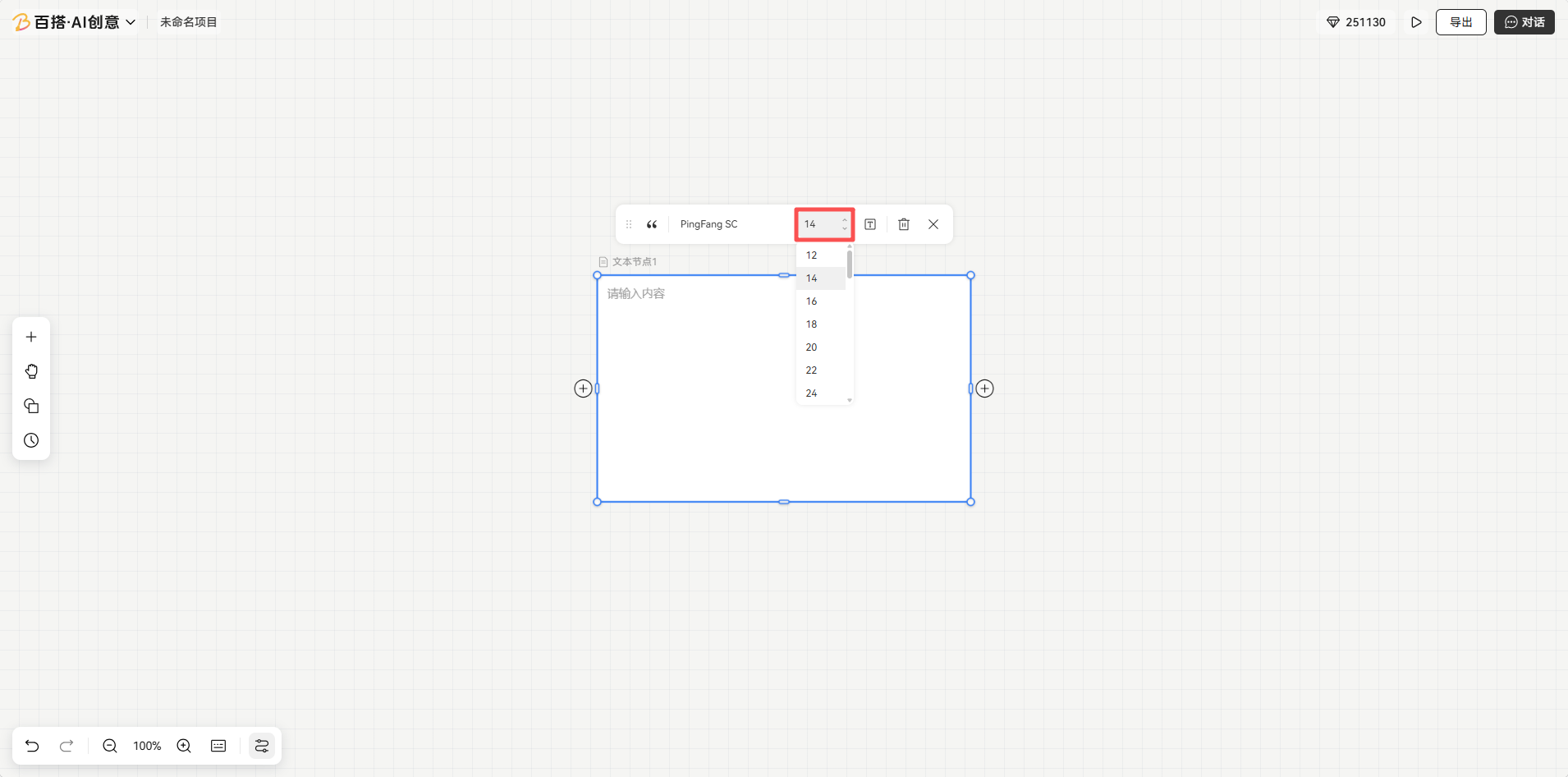
5.5 Choose a font size
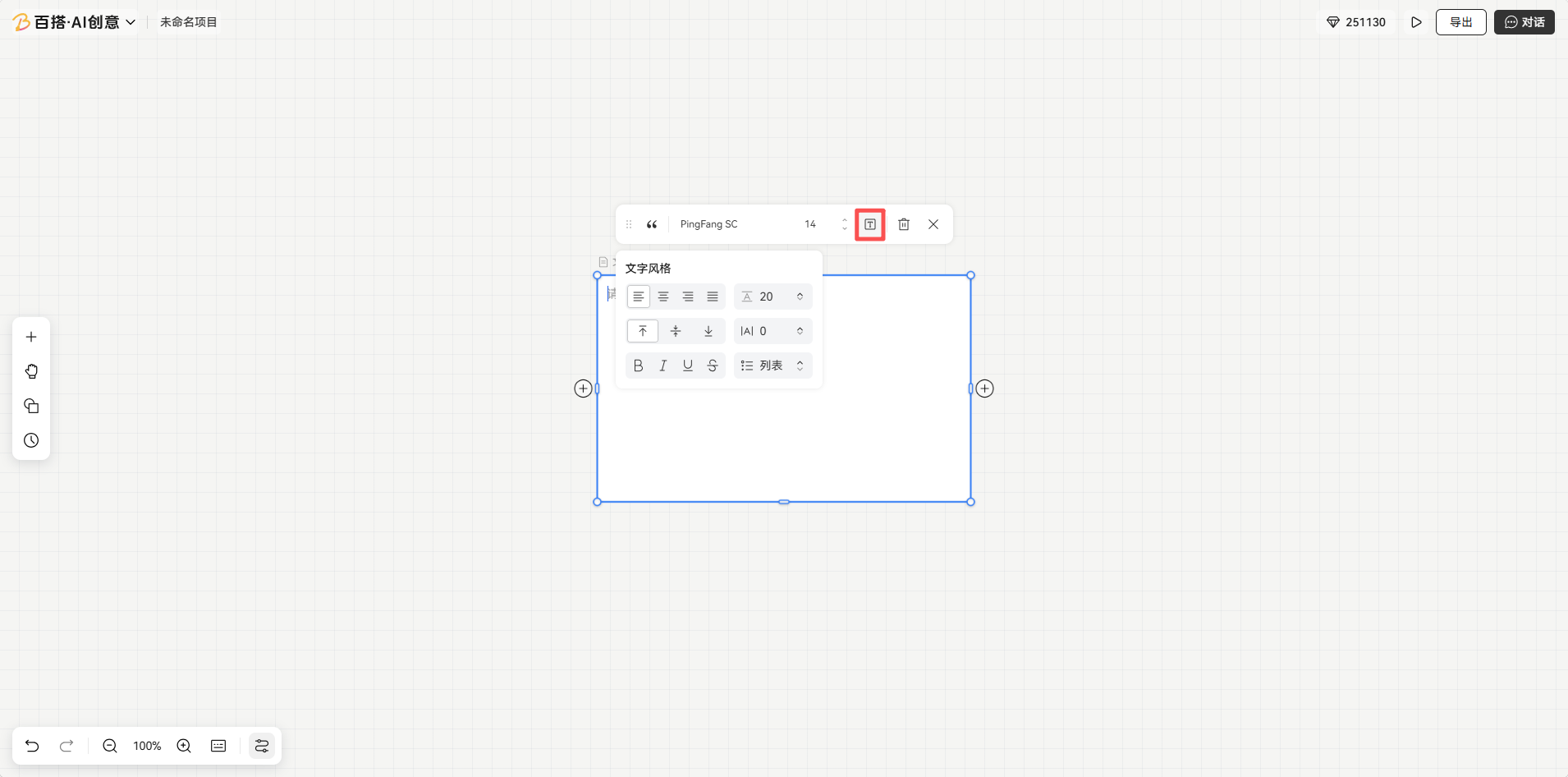
5.6 Choose a text style
6. Connect Nodes
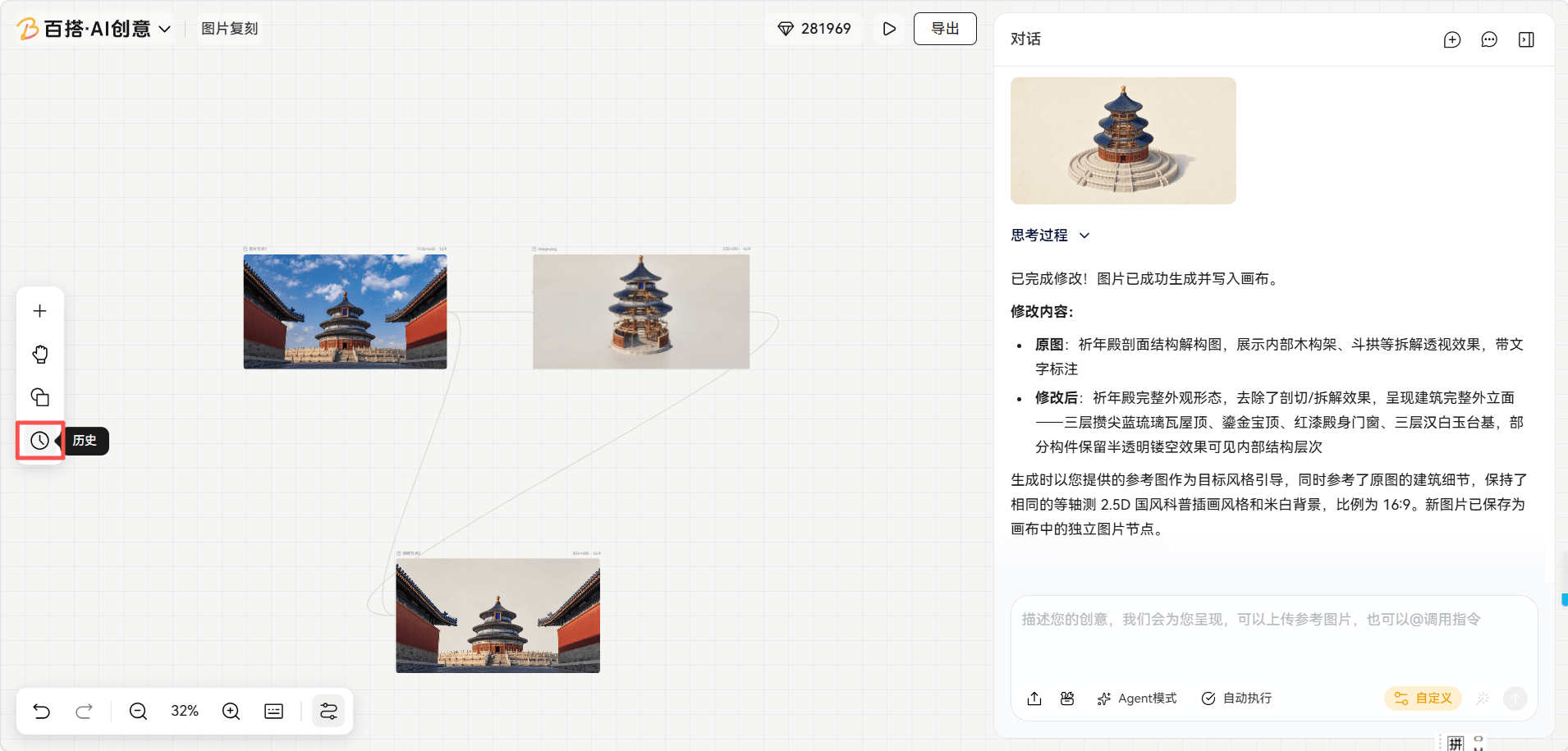
Inside a new canvas, click the plus button to connect an image, video, text, or audio node, then enter your creation request.
7. Browse Previous Generations
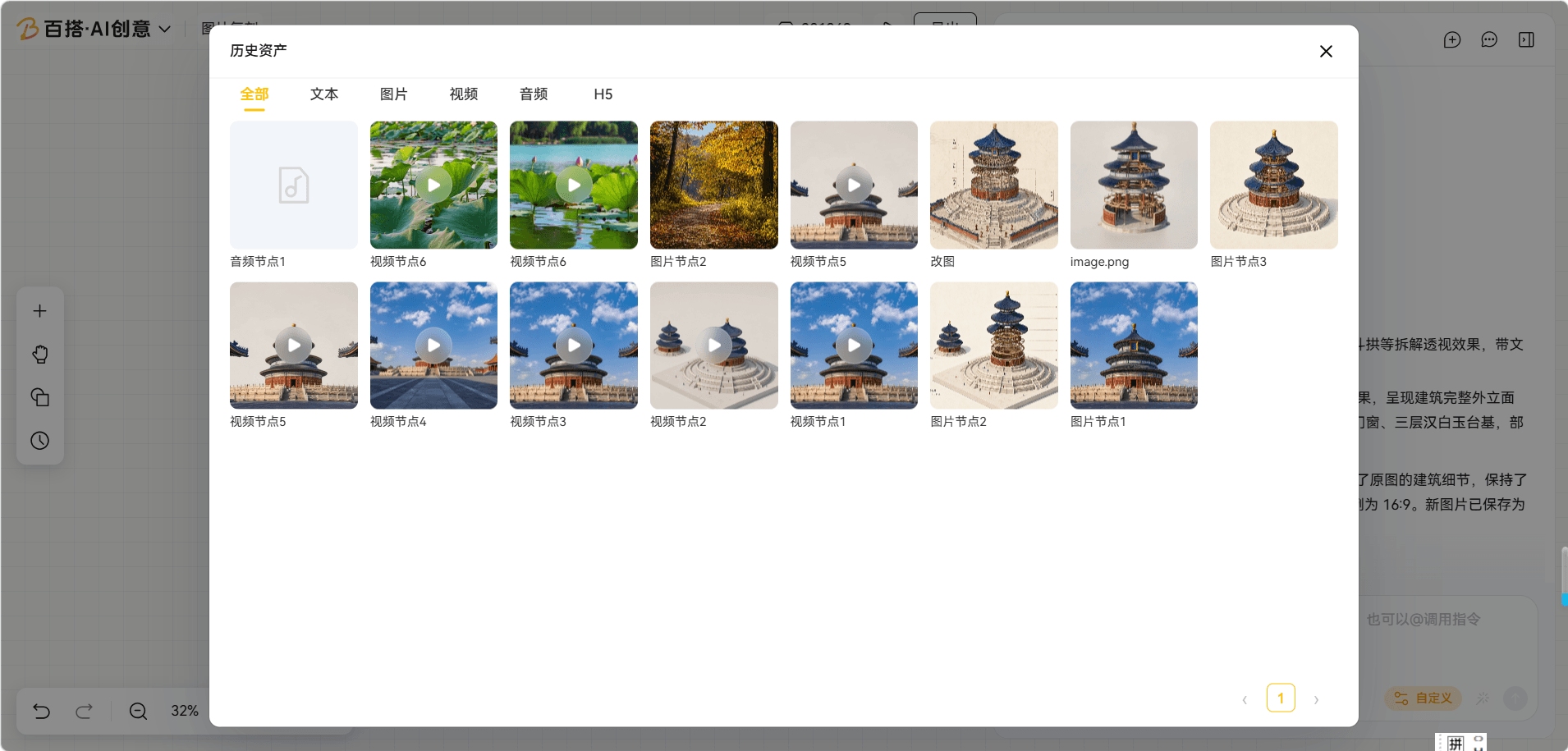
Inside a new canvas, click Historical Assets on the left.