Easy Image Editing
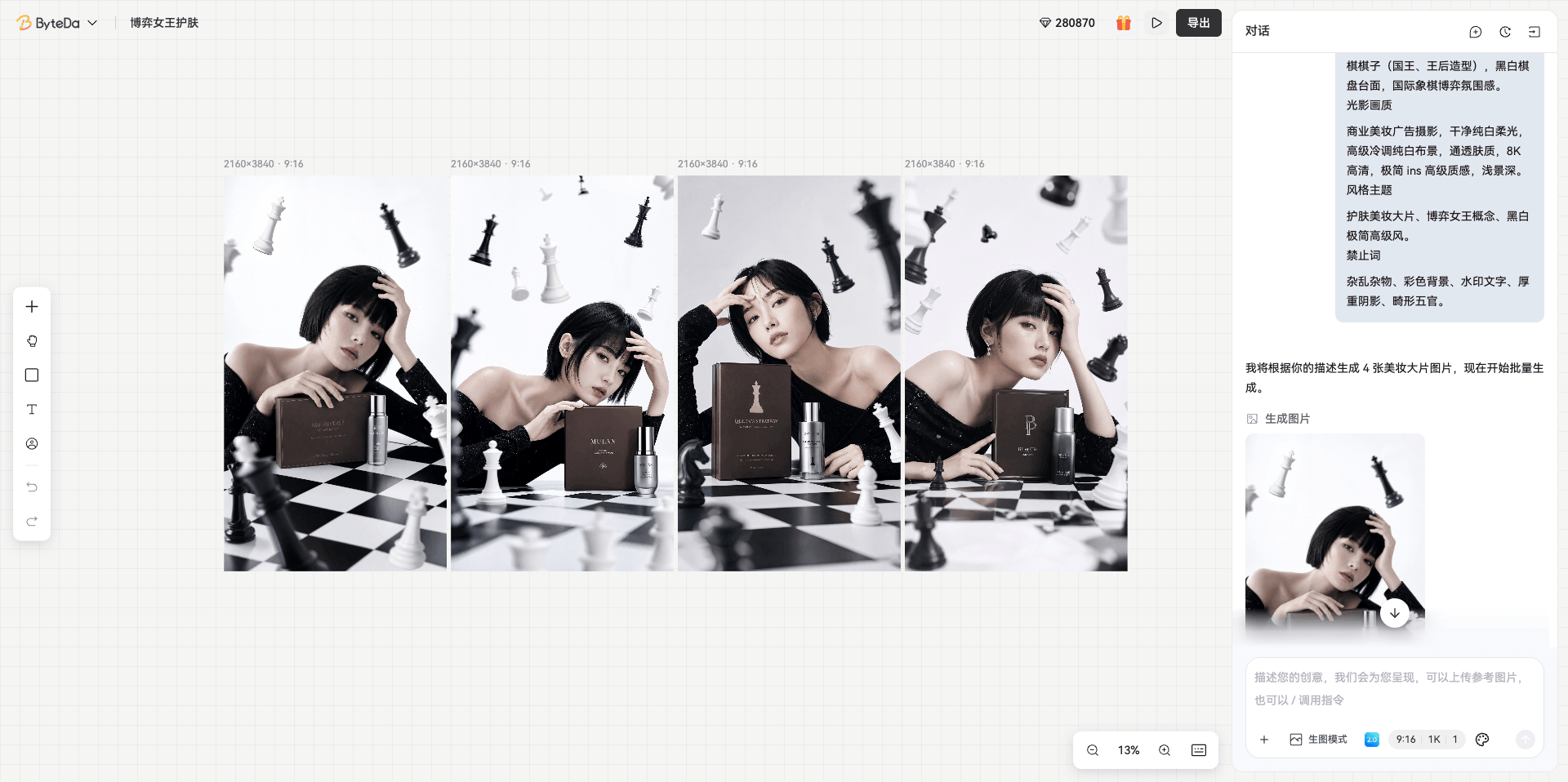
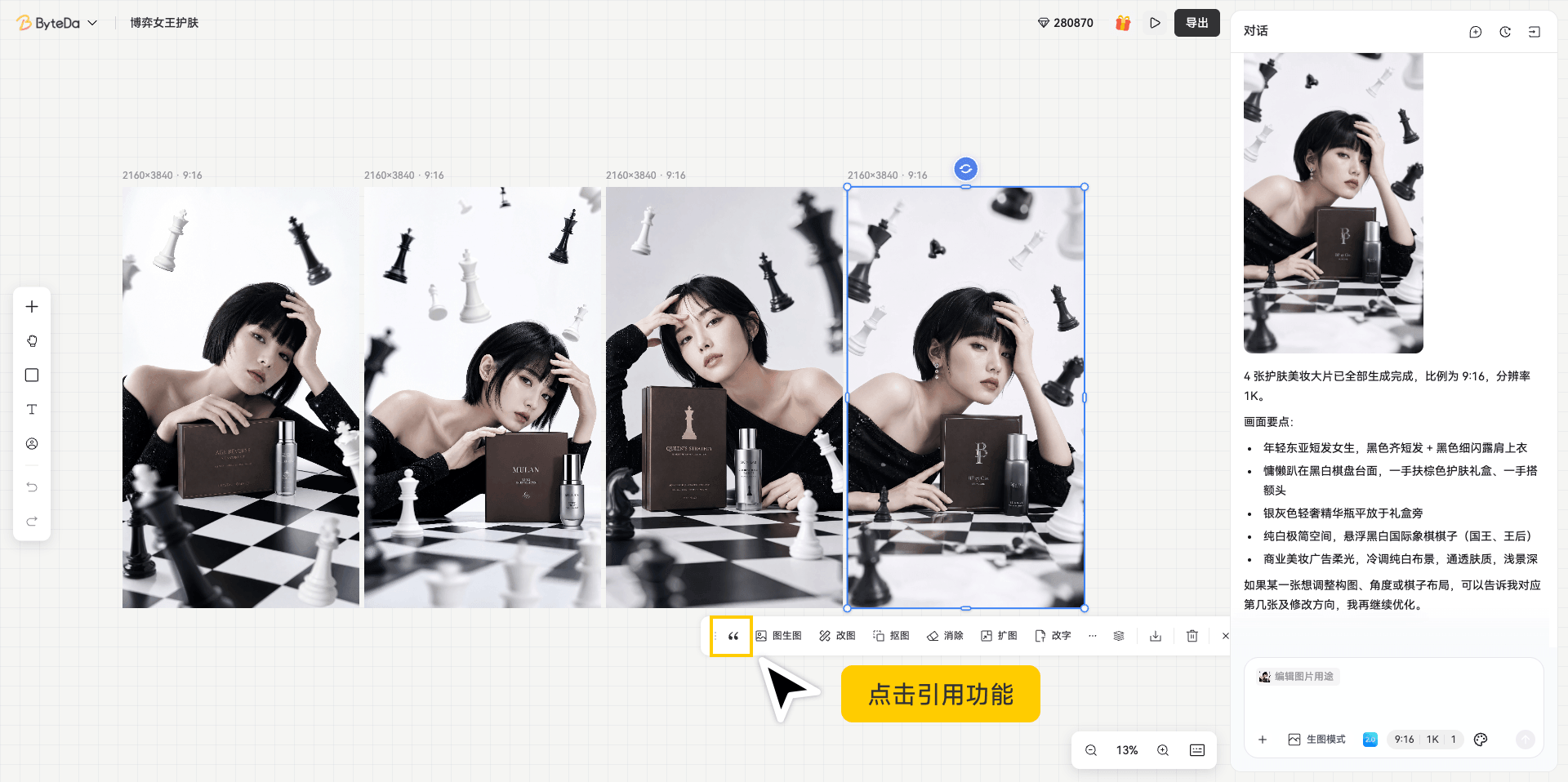
1. Reference
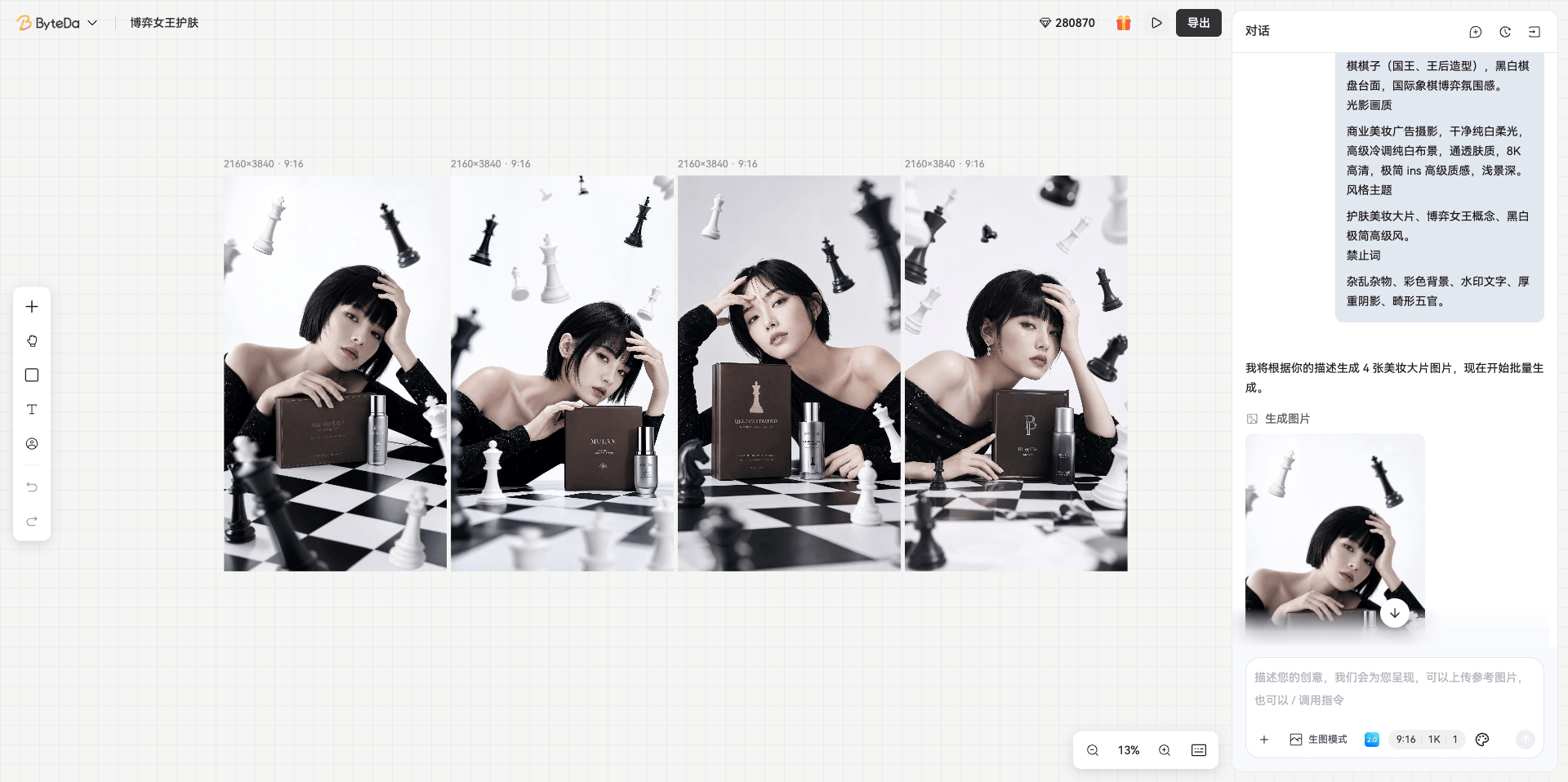
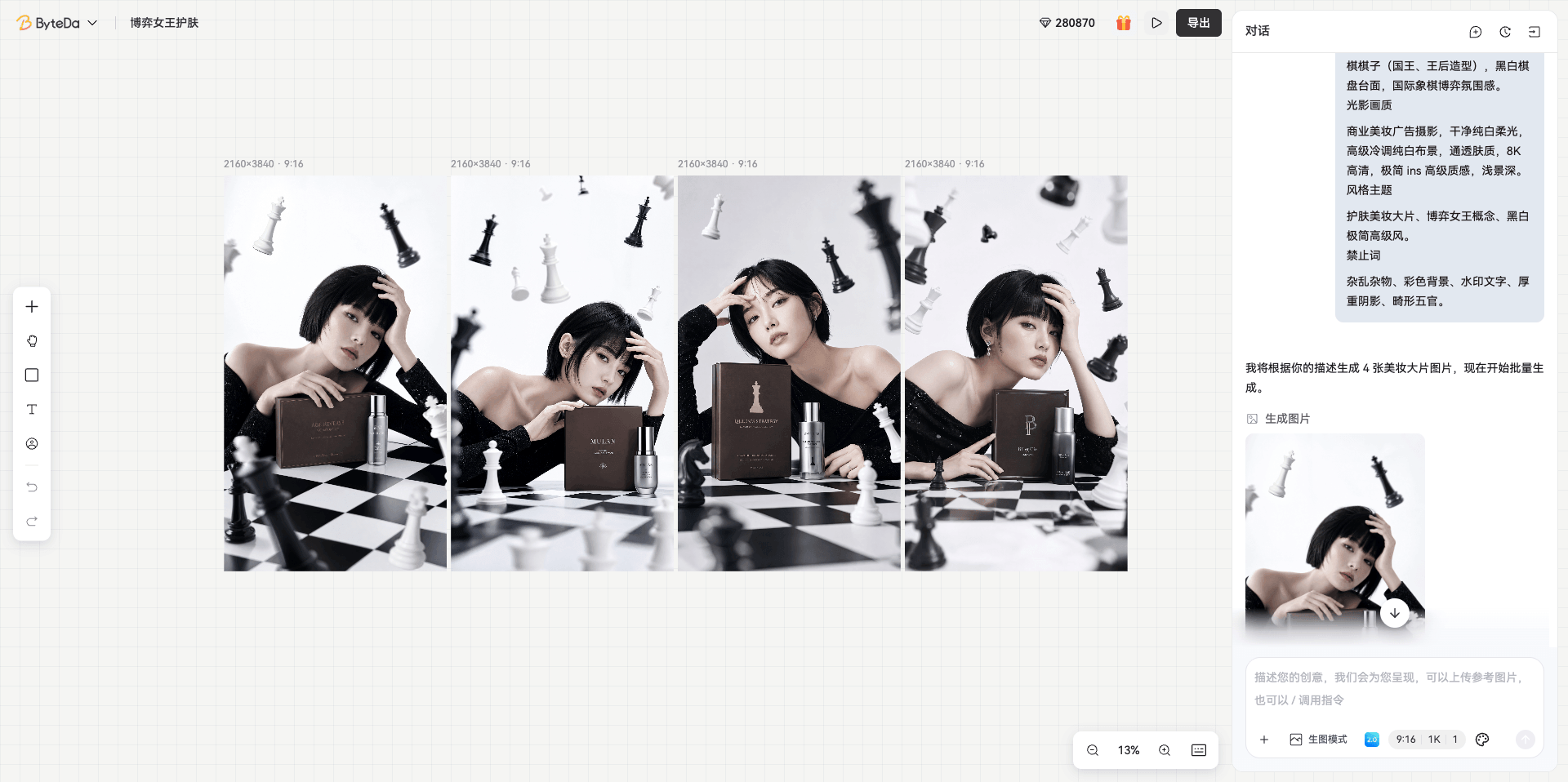

Not happy with a generated image? Click one result to reference it, then enter your edit request in the chat box.
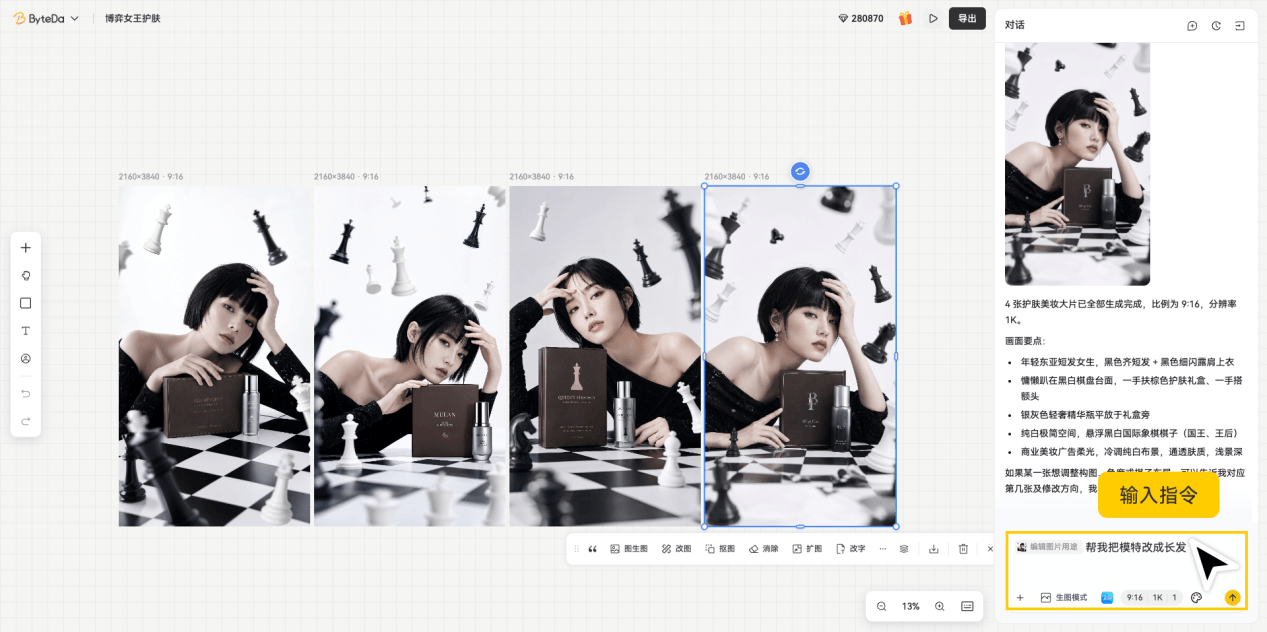
2. Image-to-Image
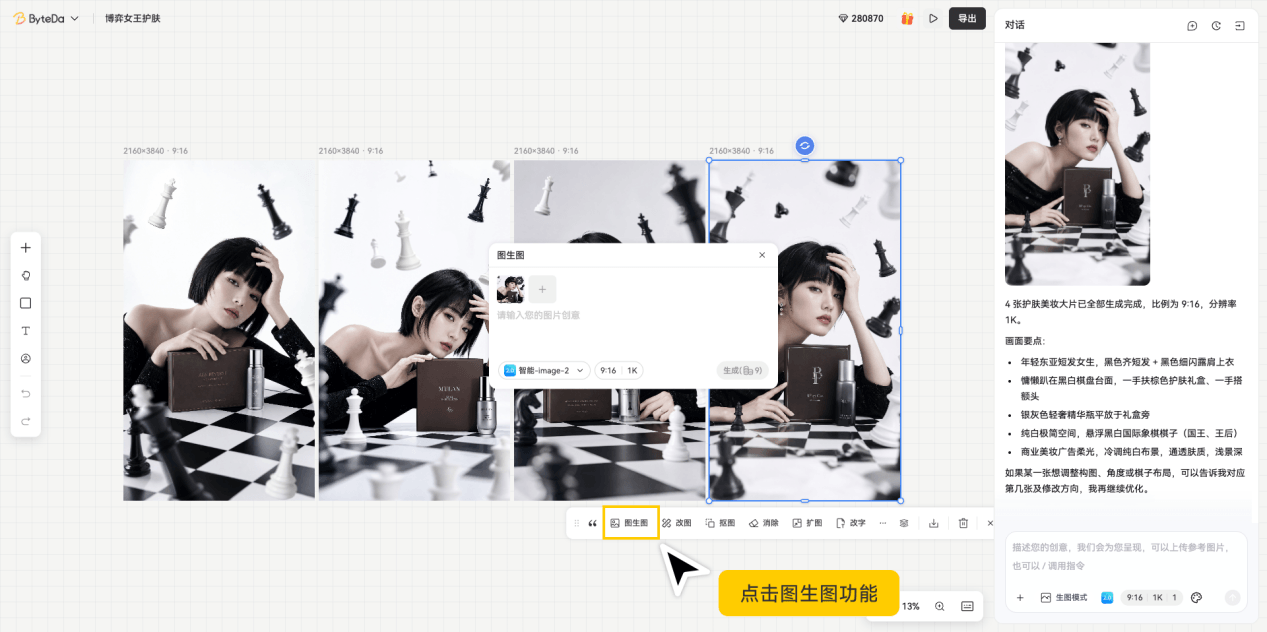
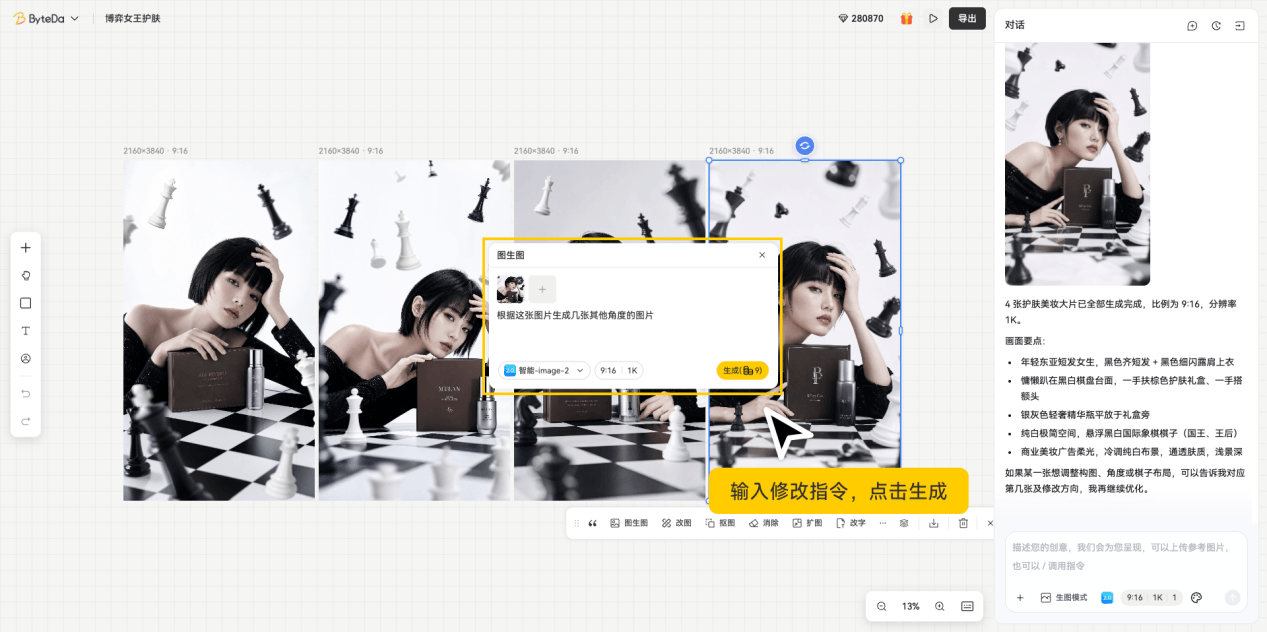
Want to change the base style or size of a single image? Select the image, click Image-to-Image, enter a prompt or adjust the size, then generate.
3. Edit Image
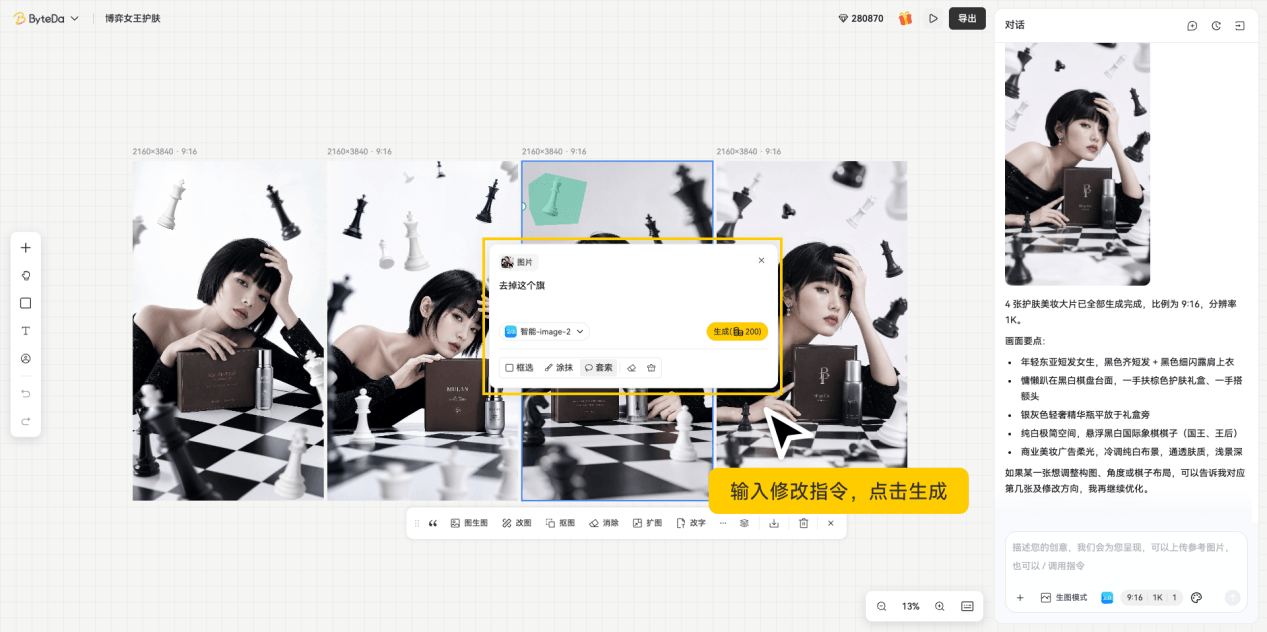
Not satisfied with part of an image? Click Edit Image, select, lasso, or brush the area you want to change, then enter your request.
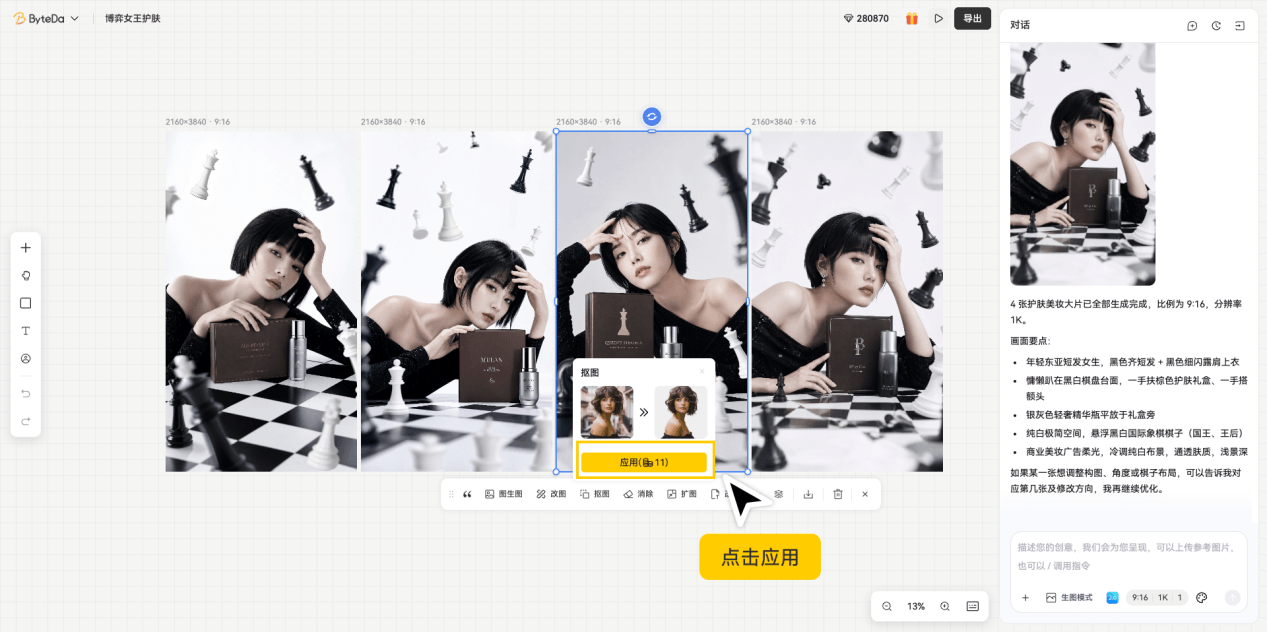
4. Background Removal

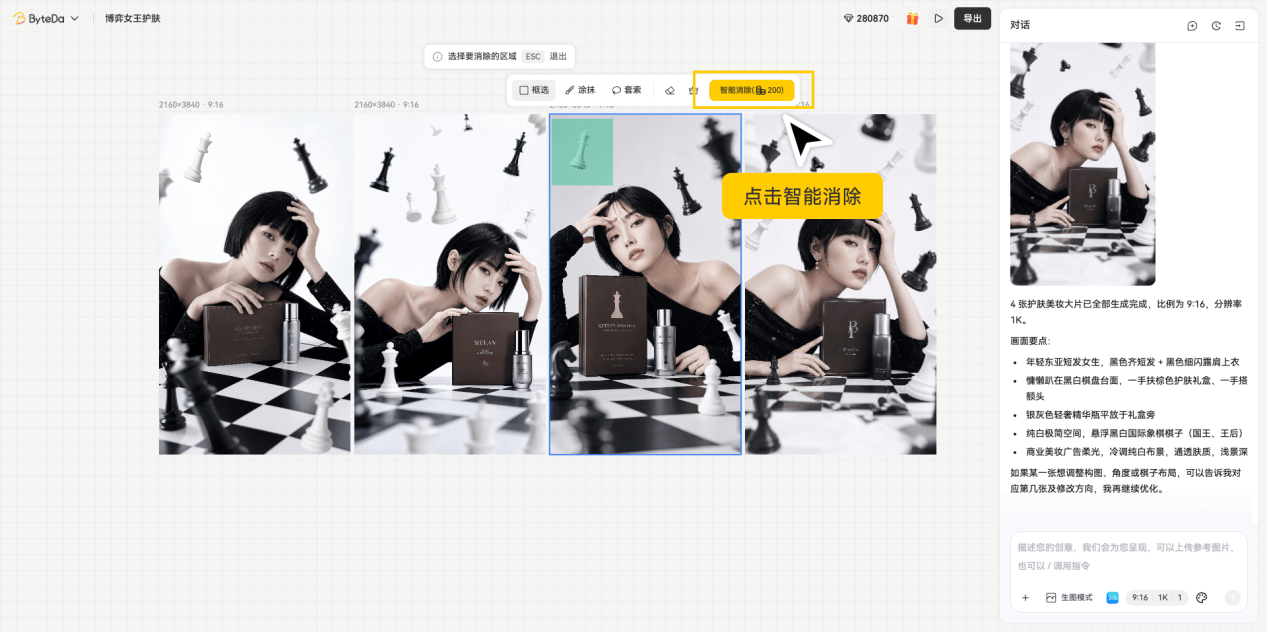
5. Remove
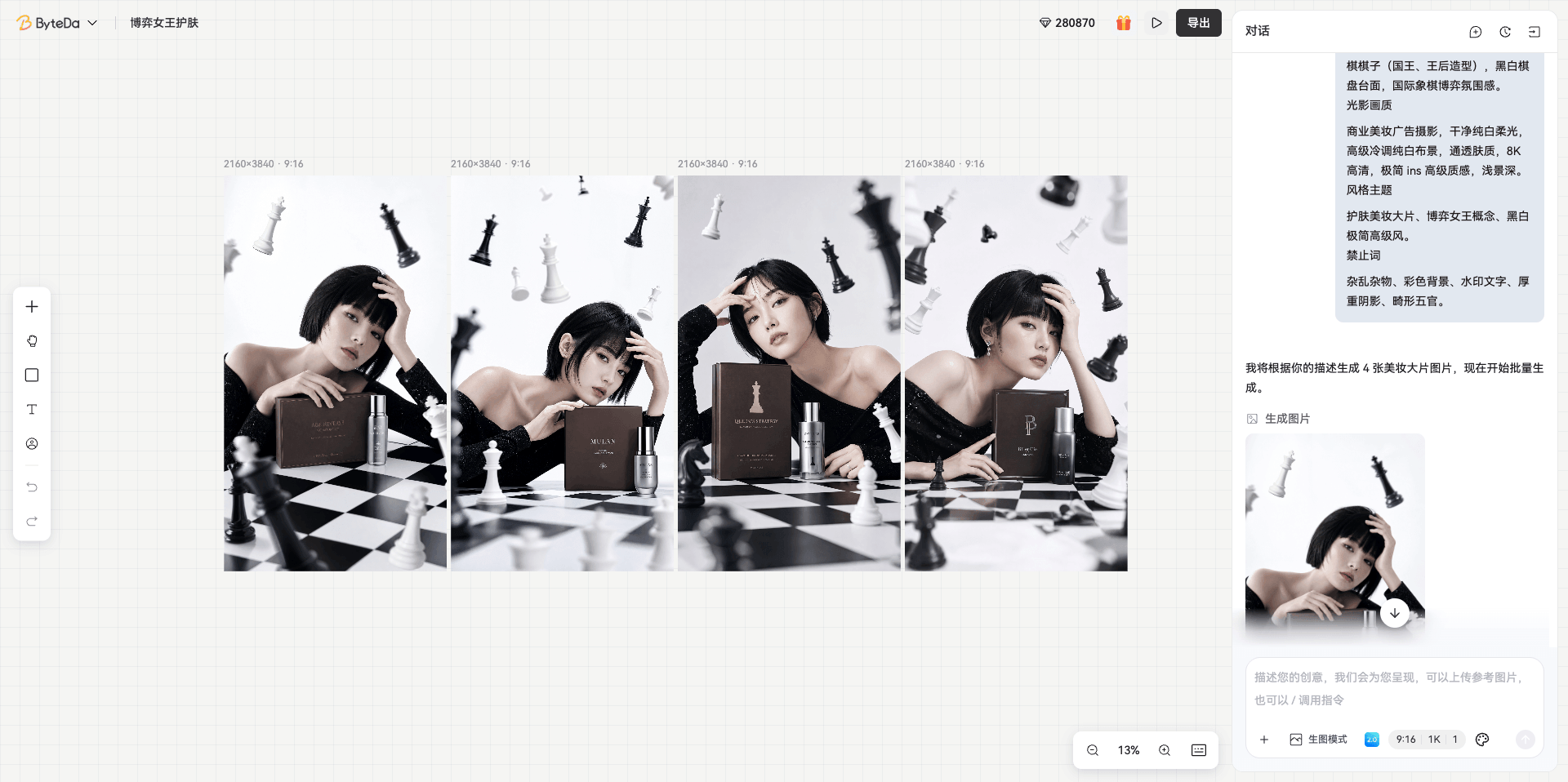
Is the generated image too busy? Click the Remove tool, then use selection, brush, or lasso to remove unwanted areas.
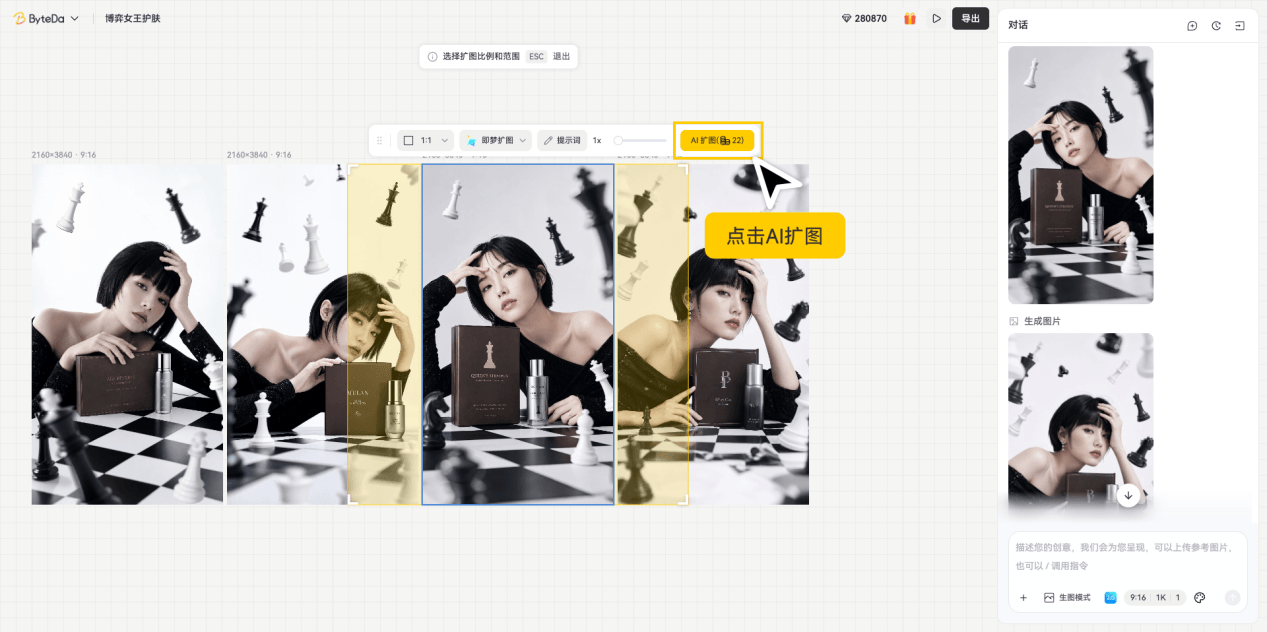
6. Expand
Need a larger canvas after generating an image? Click Expand, choose a target size or set a custom one, then let ByteDa extend the image to fit your needs.
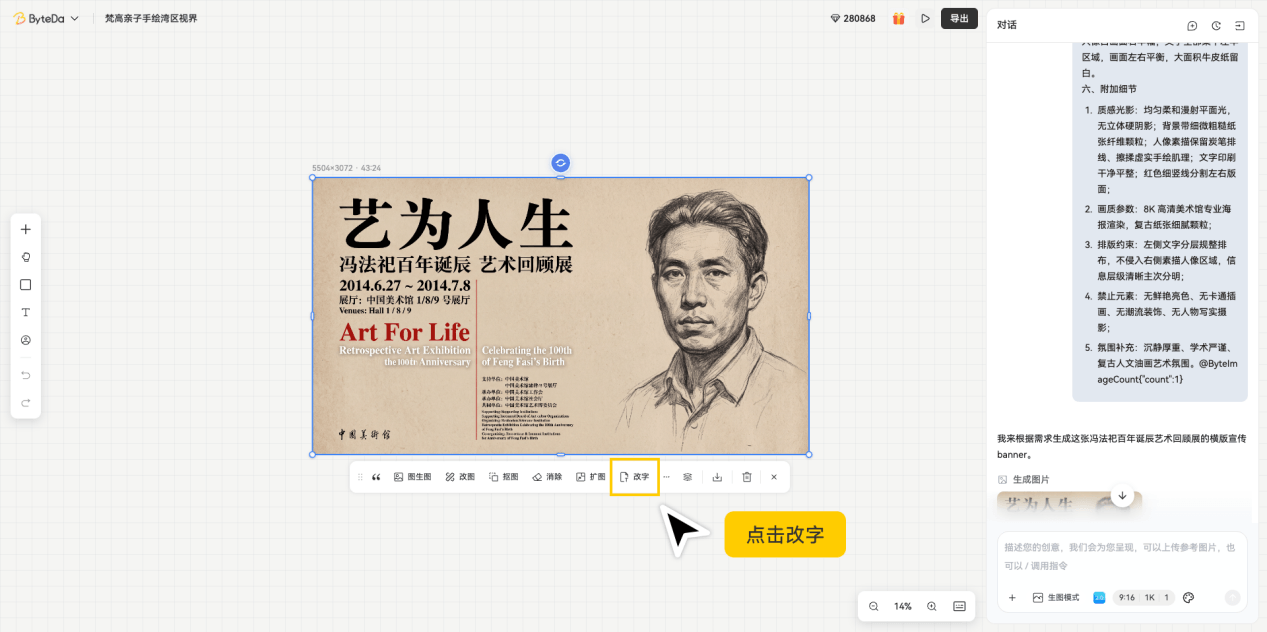
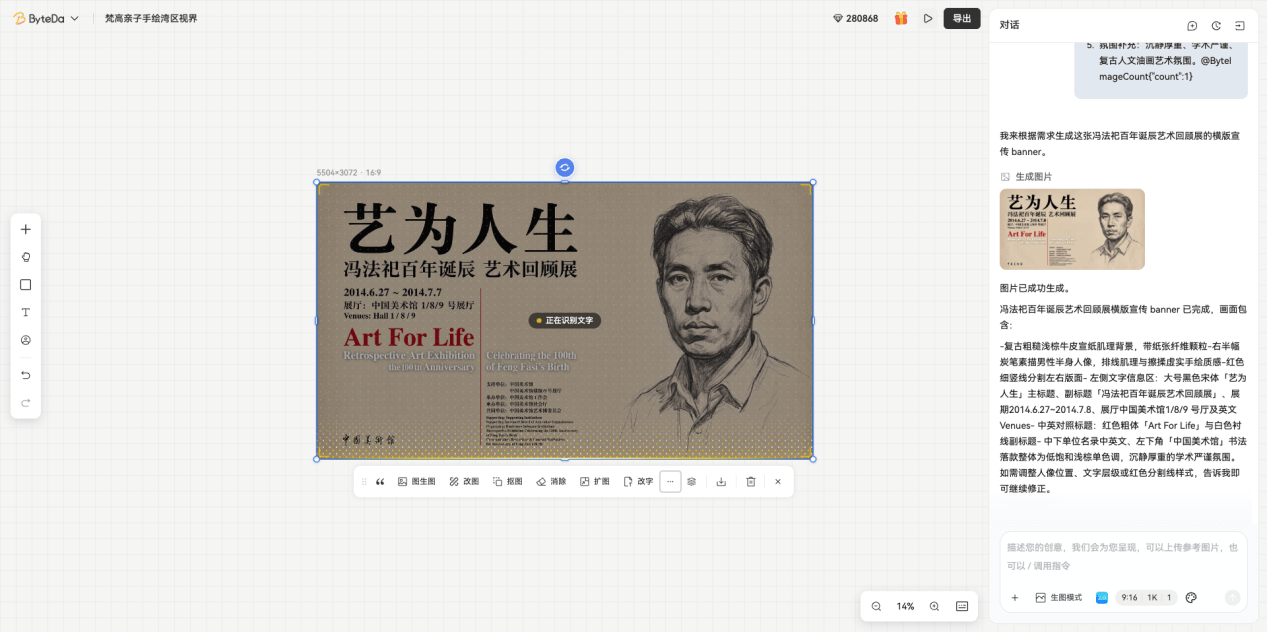
7. Edit Text
Not happy with the text in an image? Click Edit Text. ByteDa will automatically detect the text in the image, then you can replace the part you want.